ParaBlox

For technical, legal and sales teams

Build documents from content your team already approved.

ParaBlox keeps your procedures, warnings, clauses and standard descriptions in one library of versioned modules. Your team assembles manuals, guides, proposals and contracts from those modules, and when a module changes, the documents that link it change too.

We'll email you once ParaBlox is ready to use.

  • Import .docx and .pdf
  • Export to PDF and Word
  • Version history on every module
  • Interface in 12 languages

Why ParaBlox

The same paragraph lives in forty files.

Manuals, guides, proposals and contracts reuse a lot of the same text. When that text lives in copies, every update means opening file after file, and sooner or later an old version reaches a customer.

  1. 01

    Copies drift apart

    Each person edits their own version of the confidentiality clause or the team bio. After a few months no two documents say the same thing.

  2. 02

    Updates take hours

    A new payment term or a renamed product means finding every document that mentions it and fixing each one by hand.

  3. 03

    Nobody knows what changed

    Without versions or a record of edits, it's hard to tell who changed a sensitive paragraph and which documents went out with it.

How it works

Three steps from scattered files to one library.

  1. 1

    Put your standard content in the library

    Write modules in ParaBlox or import the Word and PDF files you already use. ParaBlox splits them into modules that you review before anything is saved.

  2. 2

    Compose documents from modules

    Drag modules onto real, paginated pages. Fill in variables such as the client name once per document and they appear in every module that uses them.

  3. 3

    Update a module once

    Save a linked module with Update everywhere and every document that links it shows the new version. A document that needs different wording keeps its own copy.

Module library

Every reusable piece in one place

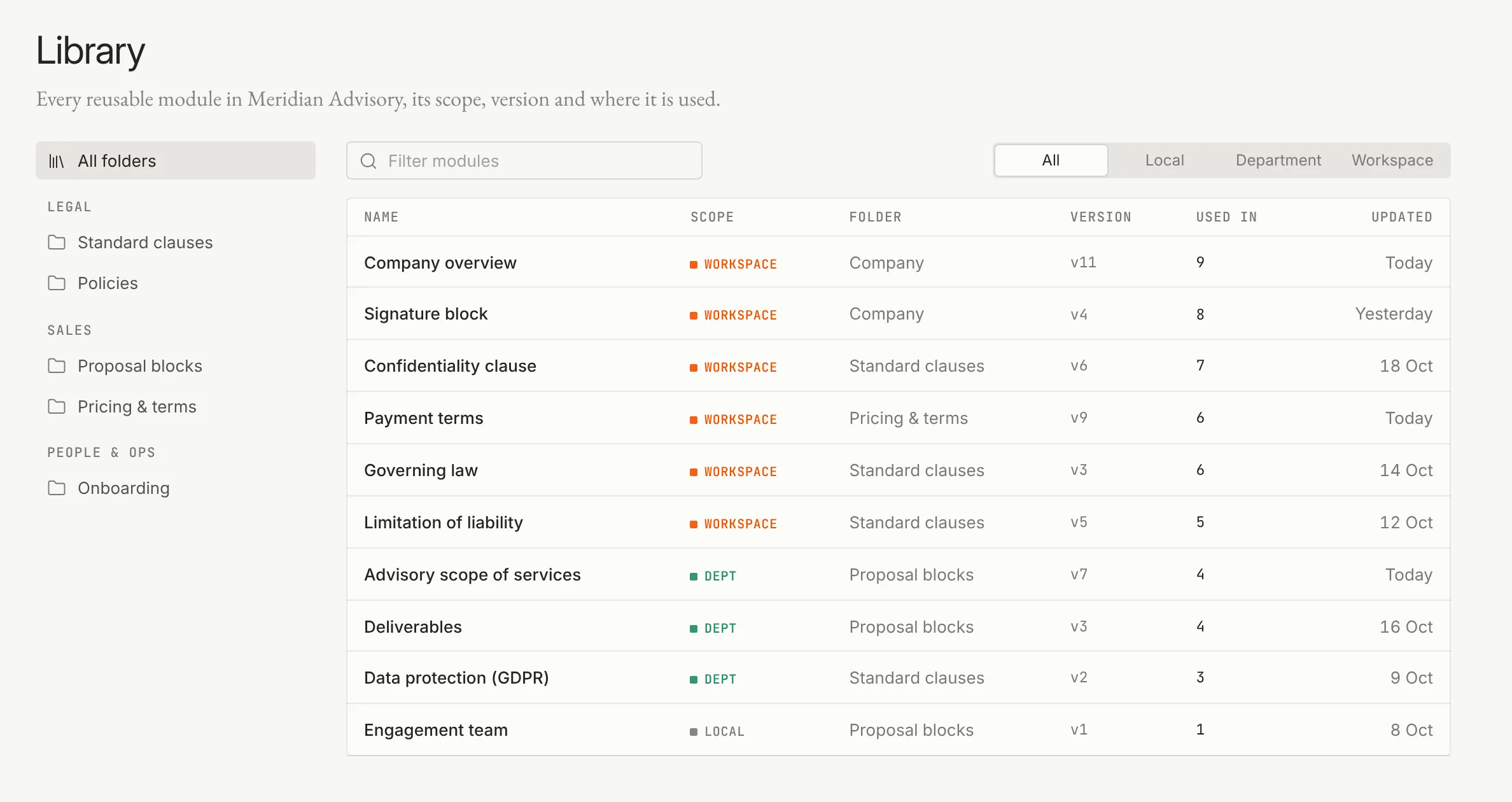
Modules live in folders inside each department. Search by name or by the text inside them, filter by type, folder or tag, and see how many documents use a module before you change it.

  • Folders shared with the whole workspace for content every department uses
  • A workspace Library page with scope, version and usage for every module
  • Archive modules you no longer want inserted without breaking existing documents
Read the docs
The workspace Library page listing modules with scope, folder, version and usage.

Linked modules

Edit a module and decide how far the change goes

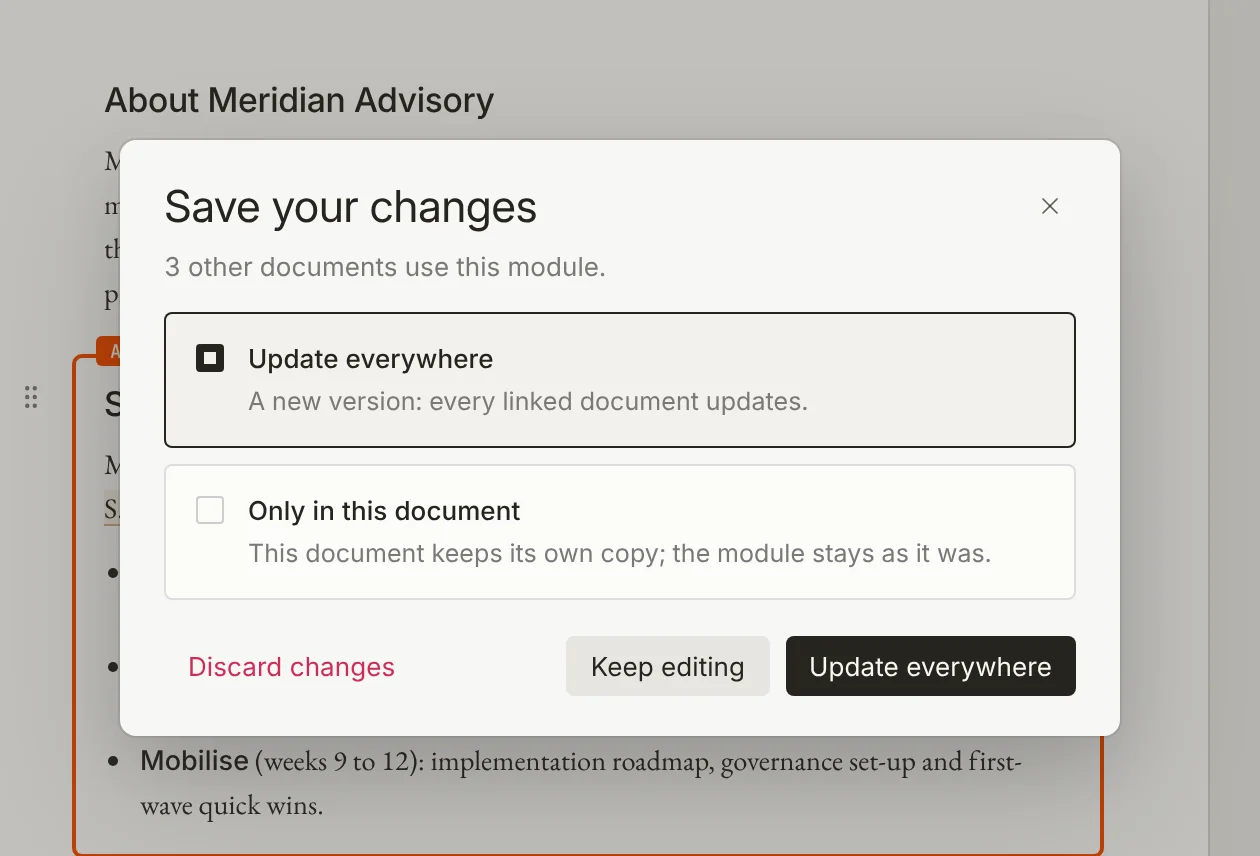
When the module you're editing is used in other documents, ParaBlox asks before saving. Update every document that links it, or keep the change in this document only.

  • Linked blocks always show the current version of the module
  • Own copies show when the library has a newer version, with a one-click update
  • Every save creates a version you can load again later
Read the docs
The Save your changes prompt with the options Update everywhere and Only in this document.

Variables

Client names and dates, filled in once

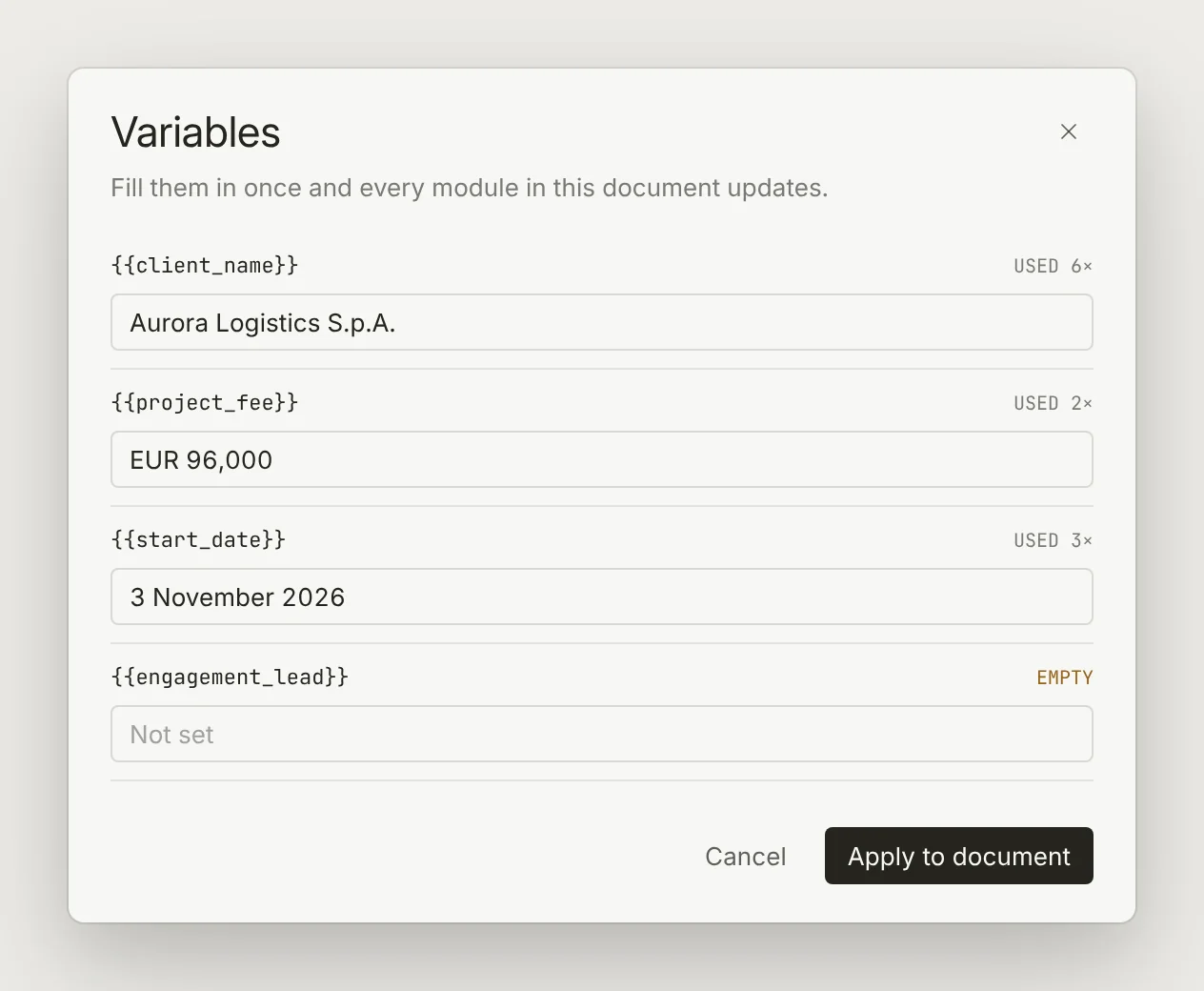
Write {{client_name}} inside a module and give it a value in each document. The same module works for every client without editing its text.

  • One dialog lists every variable used in the document
  • Values belong to the document, so the module stays generic
  • Export warns you about variables that are still empty
Read the docs
The Variables dialog with client_name, project_fee and start_date filled in.

Import

Start from the documents you already have

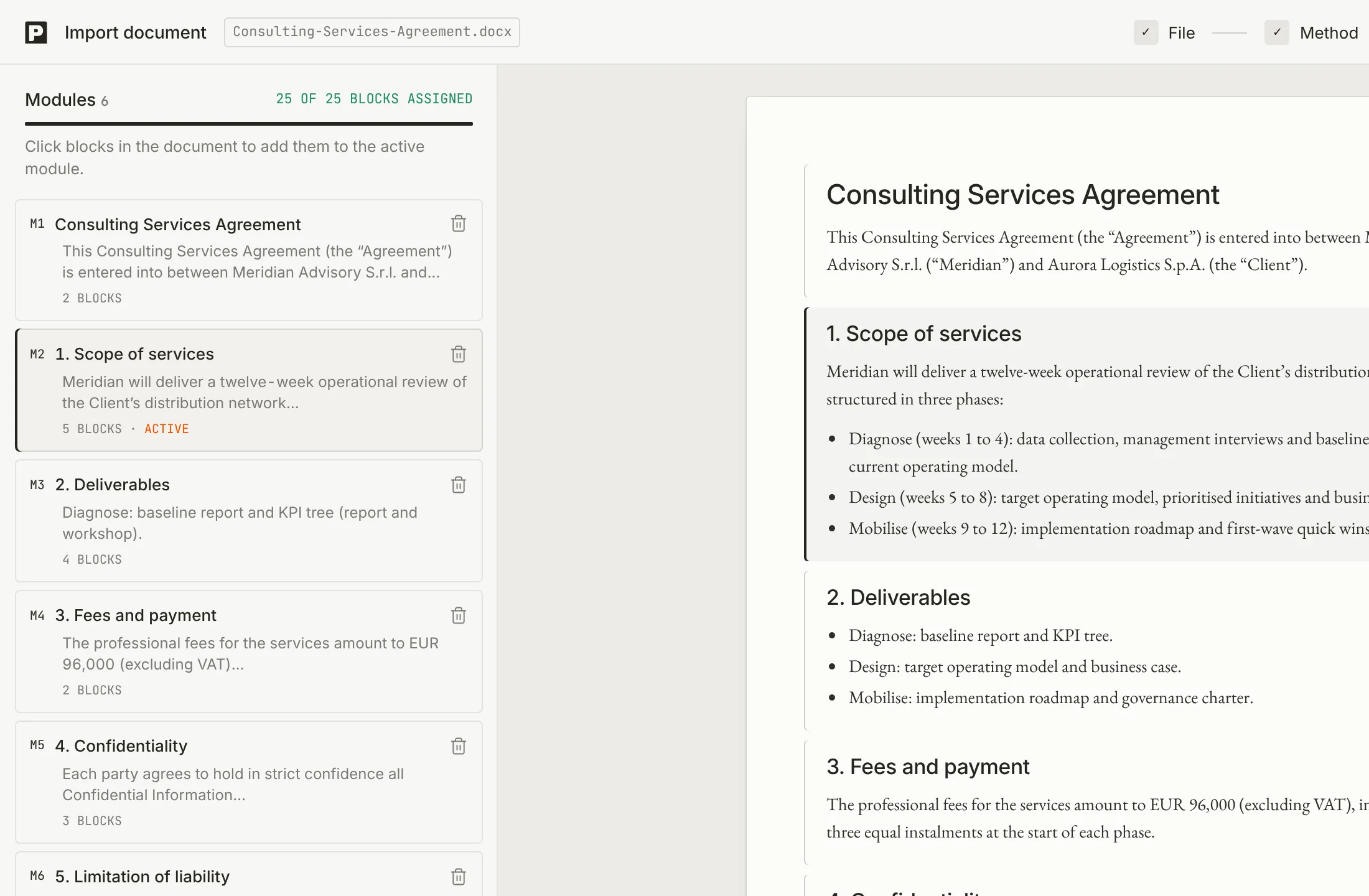
Upload a .docx or .pdf and ParaBlox splits it into modules where titles and topics change. Adjust the split by clicking blocks, then save the modules to a folder and, if you want, as a new document.

  • The file is analyzed in your browser and nothing is saved until you confirm
  • Page size, margins, headers, footers and page numbers carry over
Read the docs
The import wizard with detected modules on the left and the original document on the right.

Review workflows

Enterprise plan

Reviews and approvals with a record

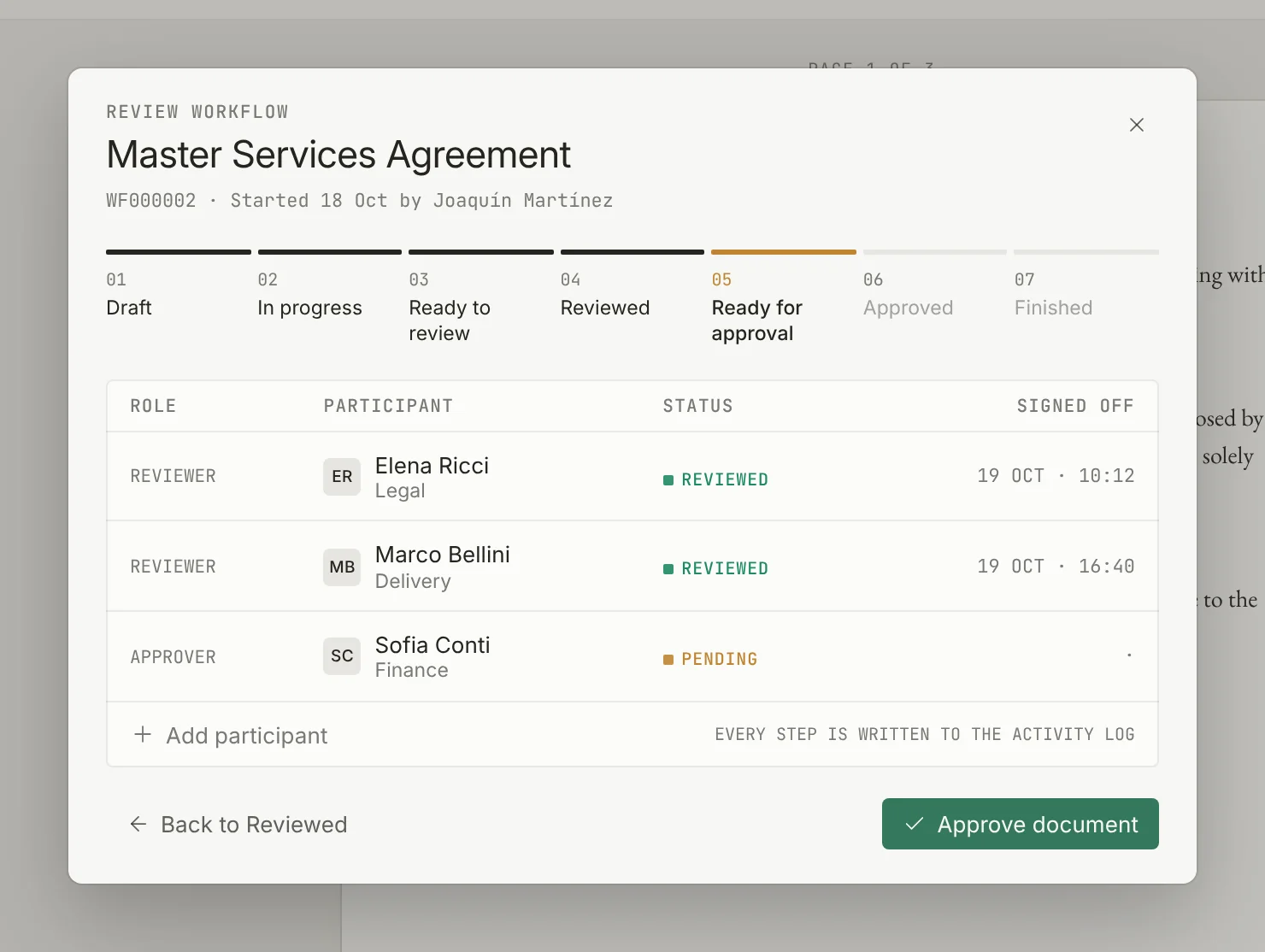
Add reviewers and approvers grouped by area, move the document from draft to approved, and export it with a final page that lists who reviewed and approved it, and when.

  • One approval per area moves the document forward
  • Save participant lists as templates for the next workflow
  • Every step is written to the document's history
Read the docs
A review workflow ready for approval, with two reviewers done and one approver pending.

Export

Send it as PDF or Word

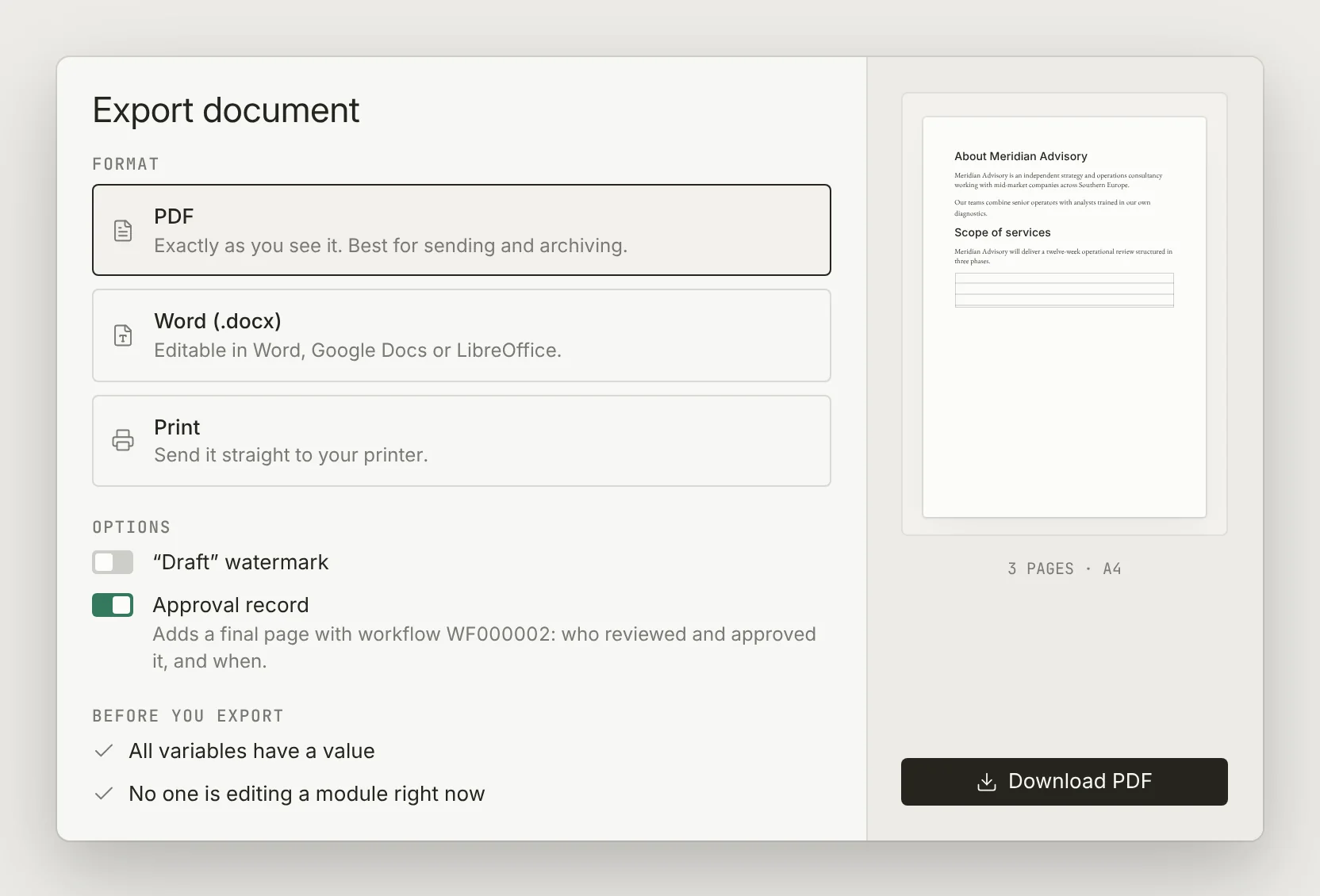
PDF export uses the same layout engine as the editor, so pages break where you saw them break. Word export gives you an editable .docx with real page number fields. Printing works on every plan.

  • Optional Draft watermark and approval record page
  • Checks for empty variables and modules being edited before you export
Read the docs
The Export document dialog with PDF, Word and Print formats.

Pricing

Start free. Pay per user when you grow.

Four plans, from a small team trying the full workflow to organizations with several workspaces.

Compare plans

Free

$0per user / month

For a small team trying the full workflow.

Basic

$5per user / month

For a team that works in ParaBlox every day.

Pro

$10per user / month

For several departments sharing content.

Enterprise

$40per user / month

For organizations with formal review and approval.

FAQ

Questions teams ask before they start.

Anything else? It's all in the documentation.

How is ParaBlox different from shared folders or Google Docs?

Those tools share whole files. ParaBlox shares the pieces inside documents. A module is inserted into many documents and stays linked to the original, so an approved change can reach all of them.

What happens to other documents when someone edits a module?

If the person saves with Update everywhere, every document that links the module shows the new version. If they choose Only in this document, that document keeps its own copy and the module stays as it was. Documents with an own copy show when the library has a newer version.

Can I bring my existing Word and PDF files?

Yes. The import wizard reads .docx and .pdf files (up to 40 MB), splits them into modules and lets you adjust the result before saving. Scanned PDFs without a text layer can't be imported.

Who can see and edit our content?

Members of a workspace can read its documents and modules. Workspace admins and each department's editors can change them. Widening a module's scope can require approval from a workspace admin.

Which plan do I need to export to PDF and Word?

PDF and Word export are included from the Basic plan. On the Free plan you can print any document or save it as PDF from your browser's print dialog.

Can people outside the workspace read a document?

Only if you create a share link for it. Anyone with the link can read that document. You can delete the link at any time, and PDF downloads from the link stay off unless you turn them on.

Create a workspace and import your first document.

The Free plan is enough for a small team to try the whole workflow.