
Review and approval workflows
Send a document through review and approval by area, track each step, and add an approval record to the exported file. Enterprise plan.
A review workflow takes a document through a fixed set of steps: reviewers read it and mark it as reviewed, then approvers sign it off. Each step is recorded, and once the document is approved you can export it with an approval record page.
Review workflows are part of the Enterprise plan. On other plans the Workflows button doesn't appear in the editor.
How a workflow works#
Each workflow has a code, such as WF000123, and moves through these statuses in order:
| Status | What it means |
|---|---|
| Draft | The workflow exists, but hasn't started. |
| Work in progress | The document is being prepared for review. |
| Ready to review | Reviewers can mark the document as reviewed. |
| Reviewed | Every reviewer has marked it as reviewed. |
| Ready for approval | Approvers can approve the document. |
| Approved | Every area has at least one approval. |
| Finished | The workflow is closed and moves to Previous workflows. |
A document has one active workflow at a time. Its current status appears as a tag in the editor's top bar and in the Status column of document lists.
Reviewers, approvers and areas#
Participants are either Reviewers or Approvers, and each one belongs to an Area, such as Legal or Finance.
- Reviewers: the workflow becomes Reviewed when every reviewer has marked the document as reviewed.
- Approvers: the workflow becomes Approved when every area has at least one approval. If an area has three approvers, one approval from any of them satisfies that area.
Who can do what#
- The document owner (the person who created the document) creates the workflow, adds and removes participants, and moves it between statuses.
- Participants mark the document as reviewed or approve it.
- Everyone else in the workspace can open the Workflows panel and follow progress.
Create a workflow#
- Open the document and click Workflows in the toolbar.
- Click Start a workflow.
- Optional: under Start from a template (optional), choose a saved list of participants.
- In Reviewers, enter an area and an email address for each reviewer. Click + Add reviewer for more rows.
- Click Next.
- In Approvers, enter an area and an email address for each approver. Click + Add approver for more rows.
- Click Next.
- In Confirm, check the list. To reuse it later, turn on Also save this list as a reusable template and give it a name.
- Click Create workflow.
The workflow is created in Draft. Workflow templates are shared with everyone in the workspace, and you can delete one from the template list in the wizard.
The wizard marks reviewers as optional, but every workflow passes through review before approval. You need at least one reviewer to send the document to review, and at least one approver to send it to approval. You can add either later with + Add participant.
Move the workflow forward#
As the owner, you see one button for the next step in the Workflows panel:
| Current status | Button | Result |
|---|---|---|
| Draft | Start workflow | Work in progress |
| Work in progress | Send to review | Ready to review |
| Reviewed | Send to approval | Ready for approval |
| Approved | Finish workflow | Finished |
Two steps happen on their own: the workflow moves to Reviewed when the last reviewer marks it, and to Approved when the last area is approved.
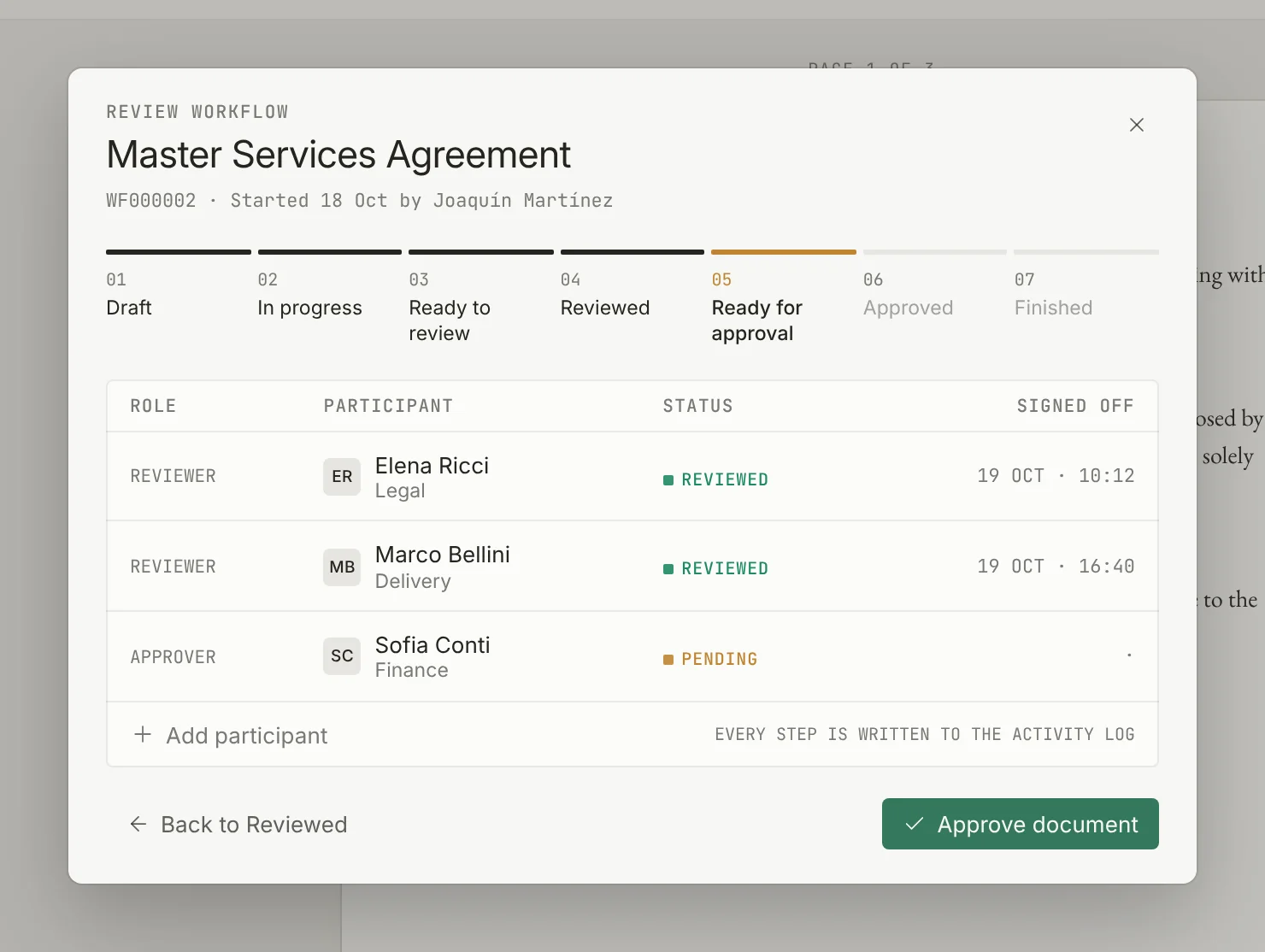
The panel also shows the participants table (role, participant, status and when they signed off), the workflow code, the start date and the document version. You can add or remove participants until the workflow is finished.
Step back#
To return to the previous status, click Back to followed by the status name. Use it when the document needs more changes.
Stepping back from a review status resets every review already given. Stepping back from an approval status resets every approval already given. Participants need to mark the document again. A finished workflow can't be reopened. Start a new one instead.
Review or approve as a participant#
- Find the document. It appears on Home under Needs your attention, and on the Approvals page under Waiting on you.
- Open the document and click Workflows in the toolbar.
- Read the document.
- Click Mark as reviewed if you're a reviewer, or Approve document if you're an approver.
The button appears only while the workflow is in your step (Ready to review for reviewers, Ready for approval for approvers). There is no button to reject or request changes. If the document needs changes, tell the owner, who can step the workflow back.
The Approvals page also lists every open workflow in the workspace under Open workflows. See The Approvals page.
Previous workflows#
Finished workflows stay with the document. Open Workflows and click Previous workflows to see them and when each one finished.
Approval record in exports#
When a document's workflow is Approved or Finished, the Export dialog offers Approval record. It adds a final page to the PDF or Word file with the workflow code, who reviewed and approved the document, and when. While a workflow is in progress, the “Draft” watermark is turned on for you. See Export to PDF and Word.
Every step of a workflow is also written to the document's History. See Activity and audit trail.