
The module library
Where your reusable modules live, how to find them while you write, and how to see every module in the workspace at a glance.
The library holds the modules you reuse across documents: clauses, intros, pricing tables, headers, footers. You reach it from two places, and each one has a different job.
The Library tab in the editor's left panel is where you work with modules: you search, insert, create and organize them while you build a document. The Library page in the sidebar is a read-only overview of every module in the workspace, with its scope, version and where it's used.
The Library tab in the editor#
Open any document and the Library tab is in the left panel, next to Navigator. It shows the folders and modules of the document's department, plus any top-level folders that other departments share with the whole workspace.
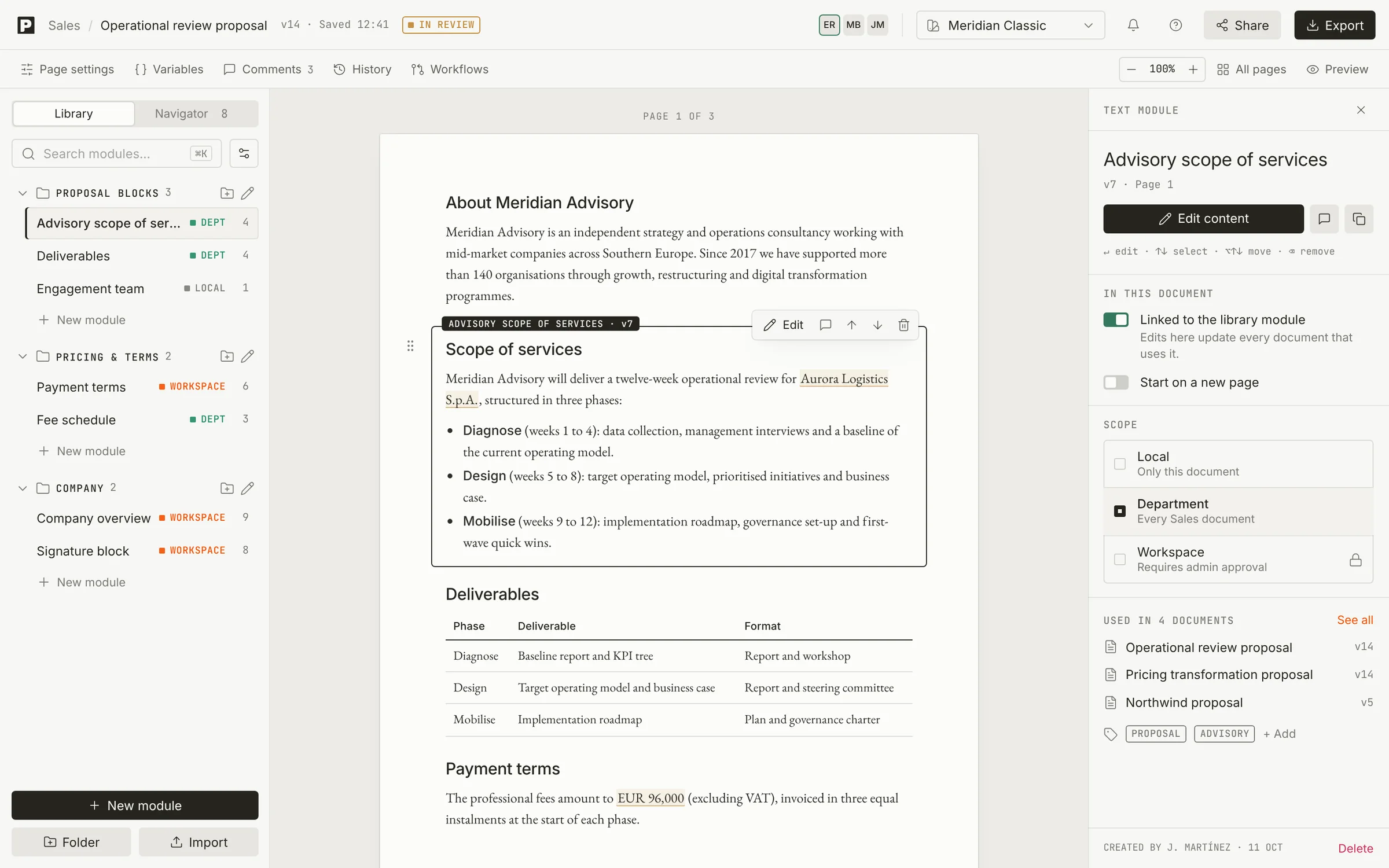
From this tab you can:
- Insert a module: click it, or select it and press Enter. It goes after the selected block, or at the end of the document.
- Drag a module onto the page to place it exactly where you want.
- Create modules and folders with the buttons at the bottom: New module, Folder and Import. See Create and edit modules and Organize with folders and tags.
- Right-click a module for more actions: Edit content, Rename, Duplicate, Module settings, Archive and Delete.
You can make the panel wider or narrower by dragging its edge. ParaBlox remembers the width.
Search the library#
The search box at the top of the tab reads Search modules…. Press ⌘ K (Ctrl K on Windows) while you're in the editor to jump to it.
Search matches a module's name and the text inside it. Accents don't matter, so "clausula" finds "Cláusula".
To narrow the results:
- Type chips: All, Text, Images, Header and Footer. Use Header and Footer when you're looking for a letterhead piece.
- Folder: limits results to one folder. The default is All folders.
- Tags: limits results to modules with a given tag. The default is All tags.
Under the filters you see how many modules match, with the reminder "click or Enter inserts, drag to place". If nothing matches, try other words or clear a filter.
Search settings#
Click the gear icon next to the search box to open Search settings. It has two switches:
- Filter by tags: shows the tag filter.
- Show archived: includes archived modules in the list, marked archived. Archived modules can't be inserted, but you can find them here to unarchive them. See Archive or delete a module.
Folders shared by other departments#
When a department shares one of its top-level folders with the whole workspace, that folder appears in every department's library with a workspace badge. You can insert its modules into your documents like any other module.
Changing those modules still requires edit rights in the department that owns them. To learn how sharing works, see Organize with folders and tags and Module scopes.
The Library page#
Click Library in the sidebar to open the workspace-wide view. It lists every reusable module in the workspace.
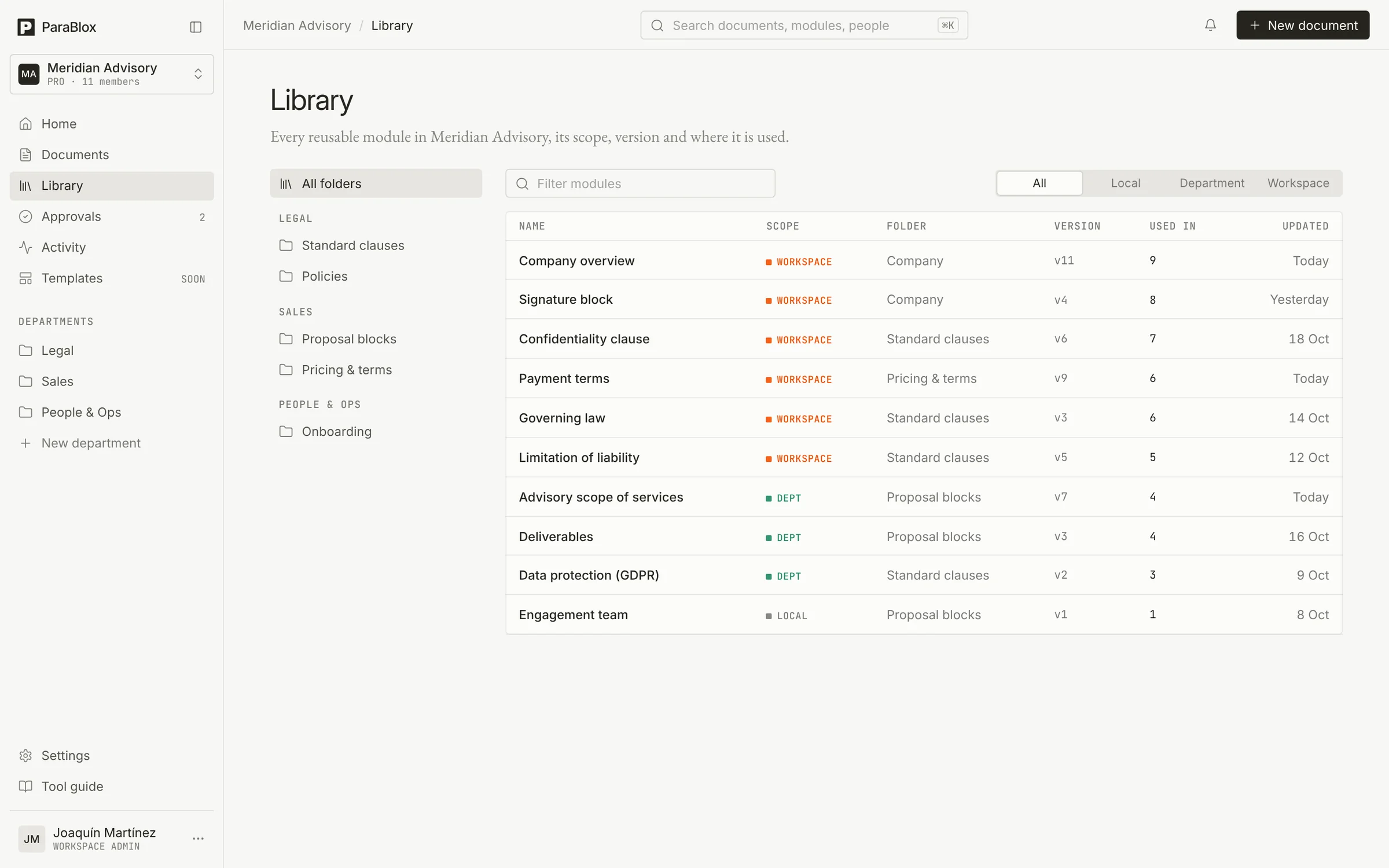
On this page you'll find:
- A folder tree for each department on the left, with All modules at the top.
- A Filter modules box to search by name.
- A scope switch: All, Local, Department and Workspace.
- A table with the columns Name, Scope, Folder, Version, Used in and Updated.
The Library page is for looking things up. You can't create, move or insert modules here. Click a module to open its module page, where you can edit the content, save a new version and see its version history. See Module versions and history.
Who can see and change the library#
Everyone in the workspace can browse the library of every department and open any module. Making changes (creating, editing, moving, archiving or deleting modules and folders) is reserved for workspace admins and the department's editors.