
Linked modules and own copies
How linked modules keep documents in sync, and when to keep your own copy instead.
When you insert a module into a document, the document points to the module in the library. This is a linked module. If someone improves the module, every document that uses it linked shows the new version.
Sometimes a document needs wording that differs from the library version. In that case you turn the module into an own copy: the content is stored in this document only and no longer follows the library.
Linked and own copy#
| Linked | Own copy | |
|---|---|---|
| Badge in the Navigator | Primary | Own copy |
| Content shown | Always the module's current version | The content as it was when you made the copy, plus your edits |
| Editing it | Can update the module everywhere | Changes stay in this document |
| Library updates | Appear right away | Shown as an available update you can accept |
Switch between linked and own copy#
- Select the module on the page.
- In the Inspector on the right, find In this document.
- Turn Linked to the library module off to make an own copy, or on to link it again.
When the switch is on, the Inspector reads Edits here update every document that uses it. When it's off, it reads Changes stay in this document only.
Linking an own copy again replaces your local changes with the library version. ParaBlox warns you first: Your changes in this document will be replaced by the library version. Click Link to module to confirm.
Edit a linked module#
Double-click the module, or select it and press Enter. What happens when you finish depends on how many documents use the module.
Only this document uses it. The edit bar shows a single Save button. Saving creates a new version of the module in the library. Clicking outside the module also saves.
Other documents use it too. The edit bar shows Update everywhere and Only in this document. Click the one you want. If you click outside the module or press Esc instead, ParaBlox asks.
The Save your changes prompt#
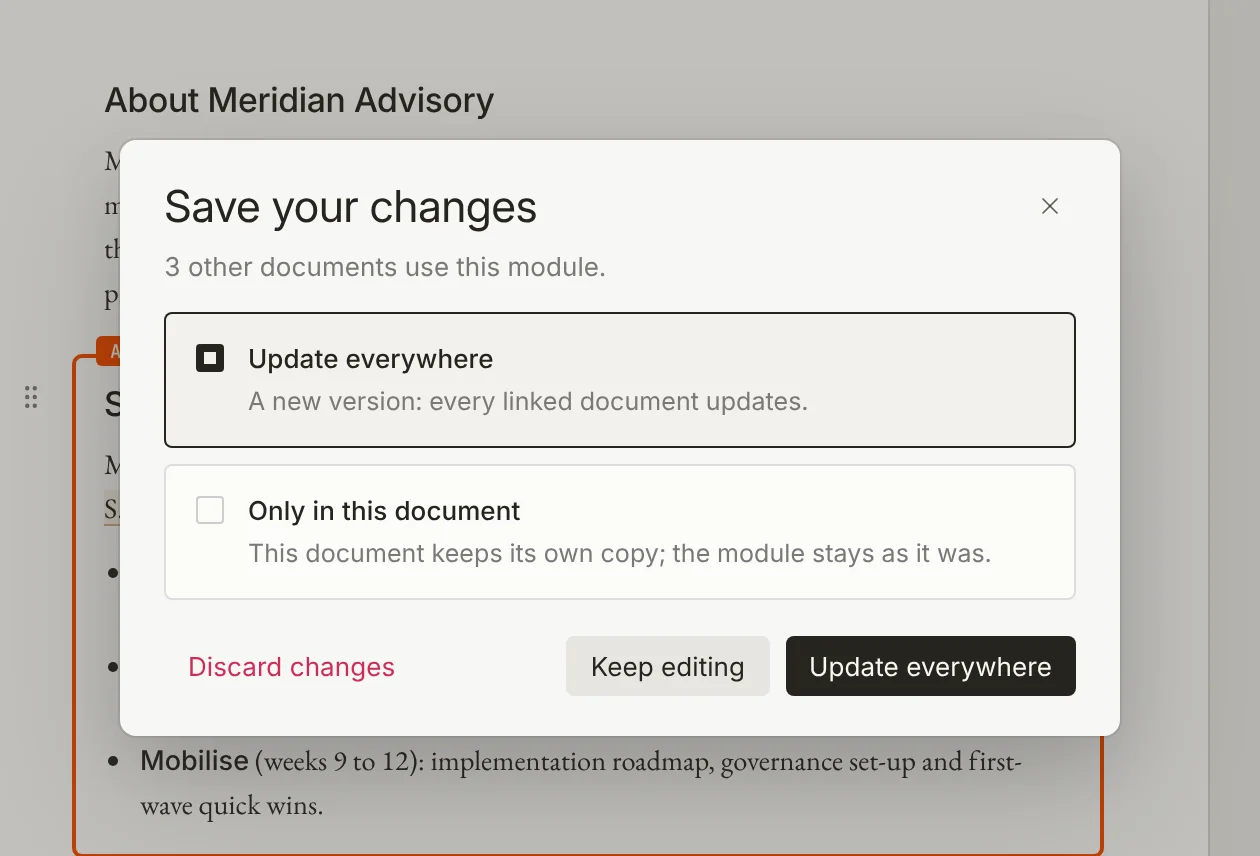
The prompt tells you how many other documents use the module, for example "3 other documents use this module." Choose one option:
- Update everywhere: saves a new version of the module. Every document that uses it linked shows the new content.
- Only in this document: this document keeps your edited text as an own copy. The library module stays as it was.
- Discard changes: drops your edits.
- Keep editing: closes the prompt so you can continue.
What happens to other documents#
When someone saves with Update everywhere:
- Documents that use the module linked show the new version right away. Nobody needs to accept it.
- Documents that hold an own copy of the module don't change. They show that an update is available, and their editors decide what to do.
Updates for own copies#
When the library module gets a newer version, an own copy shows ⚠ an update is available on the page and in the Navigator. Select the module to see your options in the Inspector, under the message The library module changed since this copy was made.
- Update replaces the copy's content with the latest library version. The module stays an own copy, so later updates will be offered again.
- Link to module links the module again. From then on it follows the library automatically.
If you do nothing, your copy stays as it is.
See updates from Home#
If you own the document, the update also appears on Home under Needs your attention, for example "Library module Payment terms moved from v3 to v4". Click Compare to open the document and review the change.