
Import Word and PDF files
Turn an existing .docx or PDF file into reusable modules, and optionally a new document, with the four-step import wizard.
The import wizard reads a Word or PDF file, splits it into modules and saves them in your library. You can also create a new document from those modules in the same step, so an existing contract or proposal becomes a ParaBlox document you can keep reusing.
To import, you need write access to the department: you have to be a workspace Admin or an Editor of that department.
Where to start an import#
There are two entry points, and they differ in where the modules end up.
- From a department page: click Import document in the header. At the end you can create a new document with the imported modules, or only add them to the library.
- From the editor: open the Library tab in the left panel and click Import at the bottom. The modules are added to the library and to the end of the document you have open.
Step 1: File#
- Drag your file onto the area that reads Drop a Word or PDF file here, or click it to choose a file.
- Wait while ParaBlox reads the file. It detects titles, paragraphs, lists, tables and images.
The wizard accepts .docx and .pdf files up to 40 MB, and PDFs up to 300 pages. If the file can't be used, you see the reason right away. The table in "Files that can't be imported" below lists each case.
Step 2: Method#
Under How do you want to import it? the wizard shows what it found in the file (titles, paragraphs, lists, tables, images and pages). Choose how to split it into modules.
Automatic#
Automatic is marked Recommended. ParaBlox starts a new module wherever a new title or topic begins. Click Split automatically to continue. You review and adjust every module in the next step, so nothing is final yet.
Manual#
With Manual you build each module yourself by clicking parts of the document. Click Build manually to continue. This works well for short files, or when you already know exactly which parts you want to reuse.
Tables and images as their own modules#
Turn on Tables and images as their own modules to put each table and image in a separate module. That makes them easier to reuse in other documents.
Warnings you might see#
- Some images were skipped because their format isn't supported.
- Very little text was found in a PDF, so the result may be incomplete.
- Repeated headers, footers and page numbers were ignored. This is expected: ParaBlox handles headers and footers separately, as described in "What carries over" below.
Step 3: Modules#
The screen is split in two. Your modules are listed on the left and the document is on the right. The module that is selected on the left is the active one.
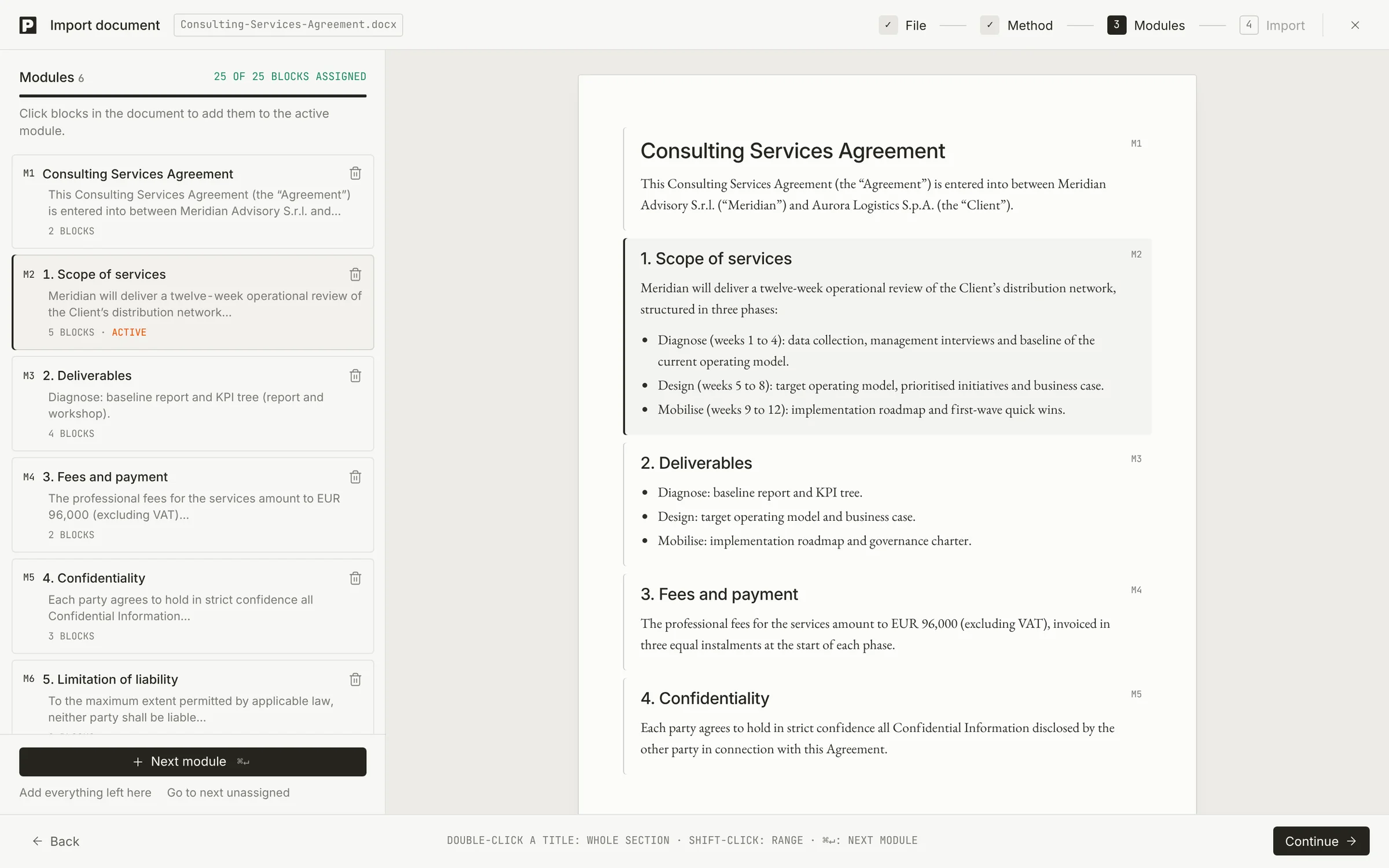
- Select a module on the left.
- Click a paragraph, table or image on the right to add it to that module. Click it again to remove it. Click and drag to select several blocks at once.
- Click Next module to start a new module.
- Rename a module by typing in its name field, or remove it with Remove module.
- Click Continue when you're done.
Other tools in this step:
- Add everything left here puts every unassigned block into the active module.
- Go to next unassigned jumps to the next block that isn't in any module.
- Redo automatic split discards your changes and splits the file again.
The counter shows how many blocks are assigned, for example "38 of 42 blocks assigned". Blocks that aren't in any module are skipped. You need content in at least one module to continue.
Shortcuts in this step#
| Action | Mac | Windows |
|---|---|---|
| Start the next module | ⌘ Enter | Ctrl Enter |
| Select a range of blocks | Shift + click | Shift + click |
| Make that block's module the active one | ⌥ + click | Alt + click |
| Select a whole section | Double-click a title | Double-click a title |
Step 4: Import#
The last step is Review and import.
- Under Folder for the new modules, choose an existing folder, or choose + Create new folder… and type a name.
- If you started from a department page, decide whether to turn on Create a new document with these modules. If you do, enter a Document title. If you leave it off, the modules only go to the library.
- If you started from the editor, the modules are added at the end of the open document (Add the modules to this document (at the end)).
- Click Import with the number of modules, for example Import 12 modules.
When it finishes you see Import complete. Click Open document to go to the new document, or Done to close the wizard.
If something fails part way, click Try again. The import continues from where it stopped, so modules that were already created aren't duplicated.
If you close the wizard before importing, ParaBlox asks Discard this import? and the modules you set up are lost.
What carries over#
- Page size and margins.
- Headers and footers, including page numbers, a different first page and different odd and even pages. They become header and footer modules and are applied when the target document is new or empty. See Headers, footers and page numbers.
- Text formatting, lists, tables and images.
- Fonts. Common Word fonts are drawn with fonts that have the same measurements, so line breaks stay close to the original.
The new modules get your workspace's default scope. You can change the scope of each one later in the Inspector. See Module scopes.
Some fine formatting can be lost. PDF files don't store structure the way Word files do, so ParaBlox detects titles and layout from what it sees on the page. Expect a .docx to give a cleaner result than a PDF of the same document.
Files that can't be imported#
| File | What happens | What to do |
|---|---|---|
| Old Word files (.doc) | Not supported | Open the file in Word, use Save As and choose .docx |
| Password-protected PDF | Rejected | Remove the password and import again |
| Scanned PDF (images only) | Rejected, there is no text to read | ParaBlox doesn't recognize text in images (no OCR). Use the original Word file if you have it |
| Empty or damaged file | Rejected | Save the file again from its original app |
| Larger than 40 MB, or a PDF over 300 pages | Rejected | Split the file into smaller parts |
| Other types | Rejected | Only .docx and .pdf are supported |
See Limits and supported files for every limit in one place.
Tips for good results#
- Prefer .docx over PDF when you have both.
- Use heading styles in Word (Heading 1, Heading 2). Automatic splitting relies on titles to decide where modules start.
- Name modules for reuse. A name like "Confidentiality clause" is easier to find in the library later than "Section 4".
- Split by meaning. One module per clause, section or block of text you expect to reuse works better than very large modules.
- Create a folder for each import so you can review the new modules together before sharing them more widely.
- Check the result in Preview before you send the document. Word repaginates documents, so page breaks may move.