
Export to PDF and Word
Download a document as a PDF or an editable Word file, add a Draft watermark or an approval record, and check it before you export.
You export documents from the editor. A PDF looks exactly like the document in the editor, page by page. A Word file (.docx) can be edited in Word, Google Docs or LibreOffice.
PDF and Word export are included in the Basic, Pro and Enterprise plans. Printing works on every plan, including Free, and you can save as PDF from your browser's print dialog. See Print a document.
Open the Export dialog#
- Open the document.
- Click Export in the top bar, or press ⌘ Shift E (Ctrl Shift E on Windows).
The Export document dialog opens with PDF selected. It shows a preview of the first page and the page count.
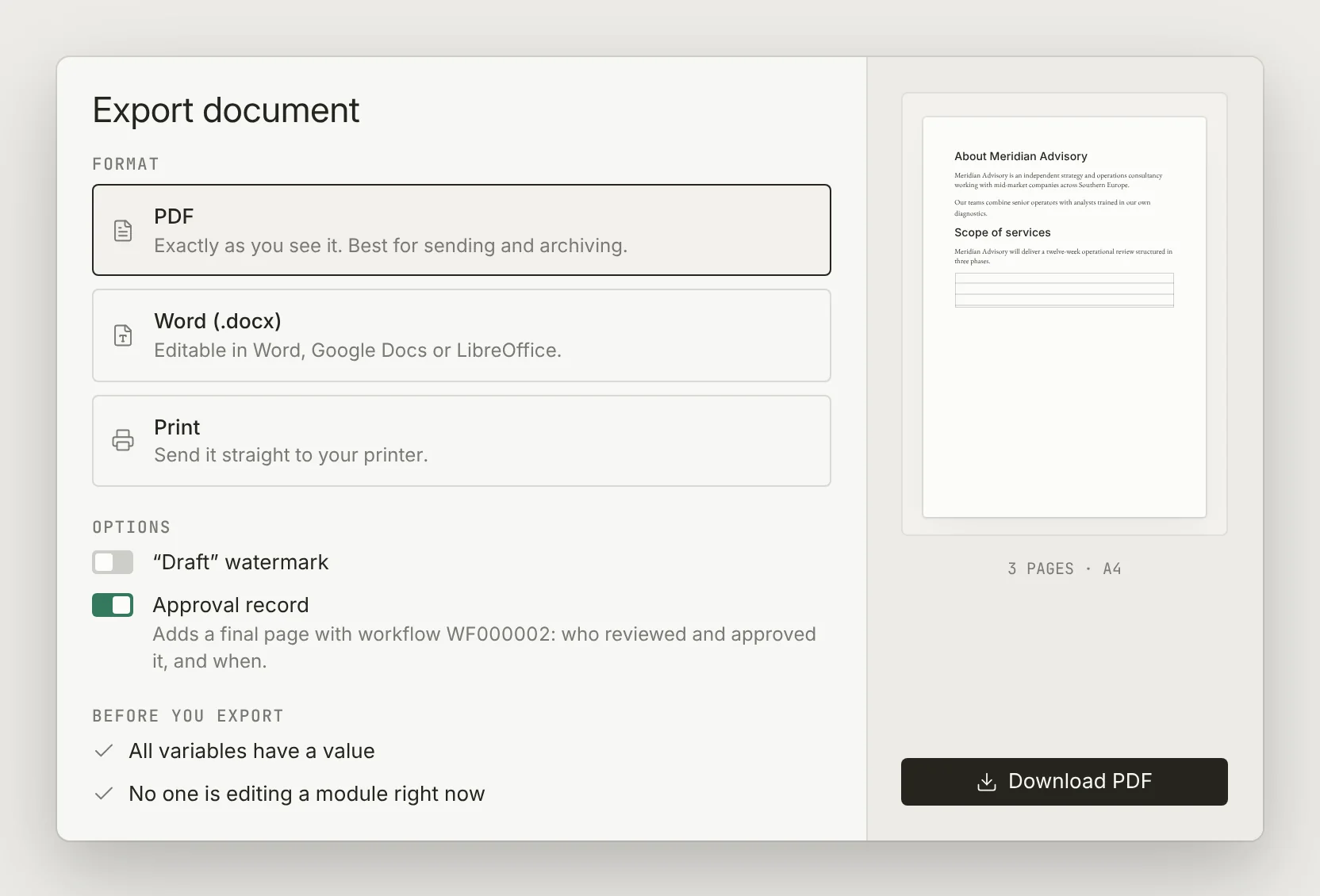
Anyone in the workspace who can open the document can export it. You don't need edit rights.
Choose a format#
Under Format, choose one of:
| Format | What you get |
|---|---|
| Exactly as you see it in the editor. Best for sending and archiving. | |
| Word (.docx) | An editable file. Word lays out the pages again, so page breaks may shift slightly. |
| Opens your browser's print dialog. See Print a document. |
You can also change the format with the arrow keys.
Options#
The Options section applies to PDF and Word.
- “Draft” watermark adds a subtle diagonal "DRAFT" across every page. If the document has a review workflow in progress, ParaBlox turns it on for you.
- Approval record adds a final page with the workflow's code, who reviewed and approved the document, and when. It also includes a content fingerprint so you can tell later whether the content changed. This option appears only when the document has an approved or finished review workflow. Dates use the time zone set in Settings under Language & Region.
Before you export#
The Before you export section lists anything you may want to fix first. You can export anyway.
| Check | What it means |
|---|---|
| Variables without a value | Those variables will be blank. Click Fill in to complete them. See Variables. |
| Someone is editing a module | The latest saved version of that module is exported. |
| A workflow is in progress | The Draft watermark was turned on. |
| External images won't be included | Only images uploaded to ParaBlox are exported. |
| PDF generation is unavailable right now | Click Print instead, then choose "Save as PDF", or export to Word. |
Export the file#
- Choose the format and options.
- Click Download PDF or Download Word, or press ⌘ Enter (Ctrl Enter on Windows).
- Wait while the dialog shows each stage. When it reads Your file is ready, the file is in your downloads.
From the final screen you can click Open or Download again. If anything was left out or simplified, it appears under Worth knowing.
Keep working while it exports#
Long documents take longer. After a few seconds the dialog offers Continue in background. Click it to close the dialog and keep working. A small notice in the corner shows the progress and downloads the file when it's ready. To stop an export, click Cancel export.
Repeat exports are instant#
If nothing changed since the last export with the same format and options, ParaBlox gives you the same file right away and tells you nothing changed.
Limits#
- A PDF can have up to 500 pages. Longer documents can be exported to Word or printed.
- Exported files are private and expire after 24 hours. After that, export again.
- If you export many files in a short time, ParaBlox asks you to wait a few minutes. See Limits and supported files.