
Product
Everything ParaBlox does, section by section.
A workspace holds your departments. Each department keeps its documents and a library of modules. Documents are assembled from those modules, and the rest of the product is about keeping that content accurate as it gets reused.
Module library
A library of the text you reuse
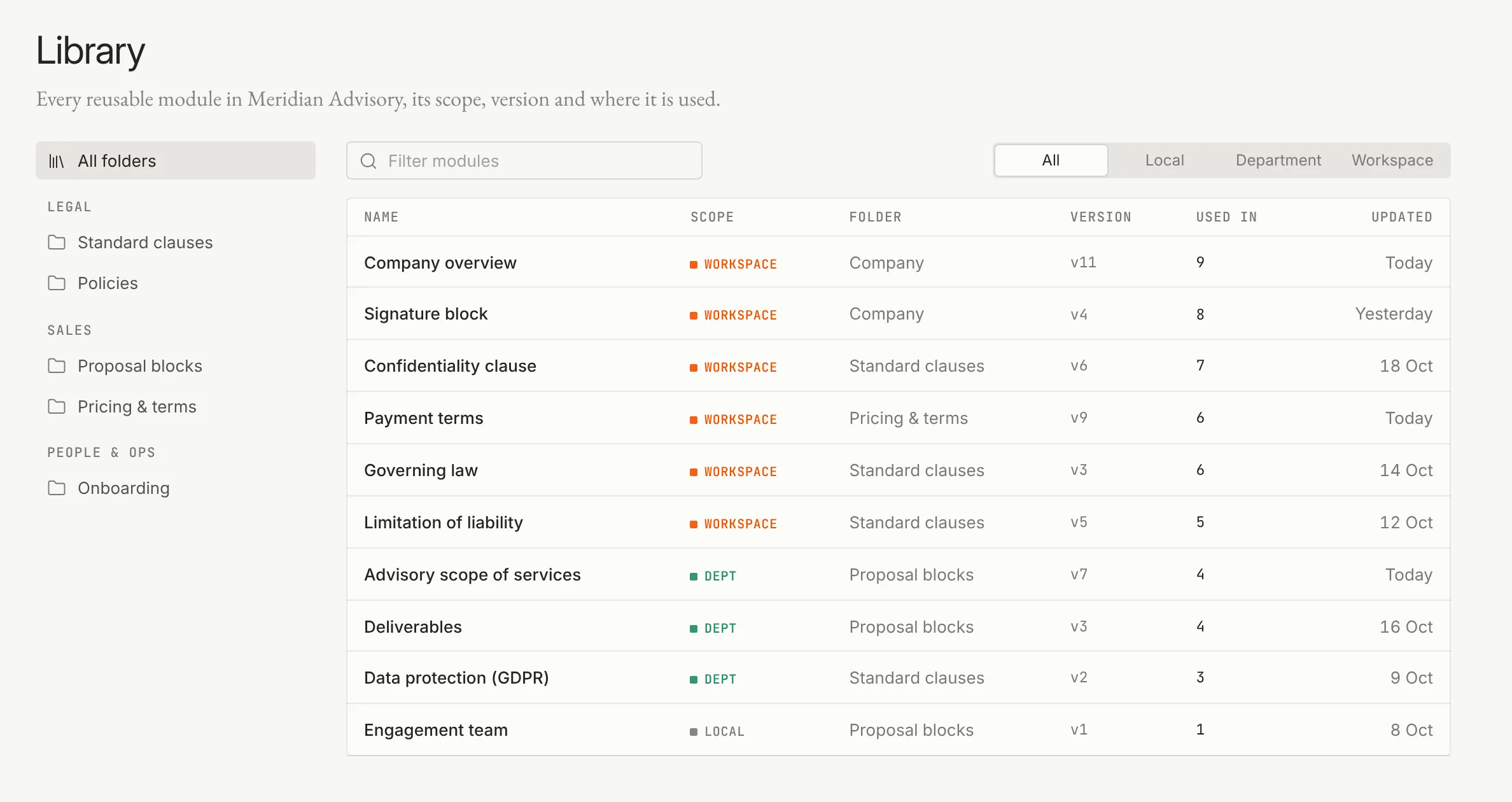
A module is a reusable block of content: a clause, a company description, a pricing table, a signature block. Modules live in folders inside each department, and every save creates a new version.
- Search by name or by the text inside a module, ignoring accents
- Filters by type, folder and tag, with up to six tags per module
- Nested folders, and top-level folders shared with every department
- A workspace Library page with each module's scope, version and number of documents that use it
- Archive a module to stop new insertions while existing documents keep it
Editor
Real pages while you write
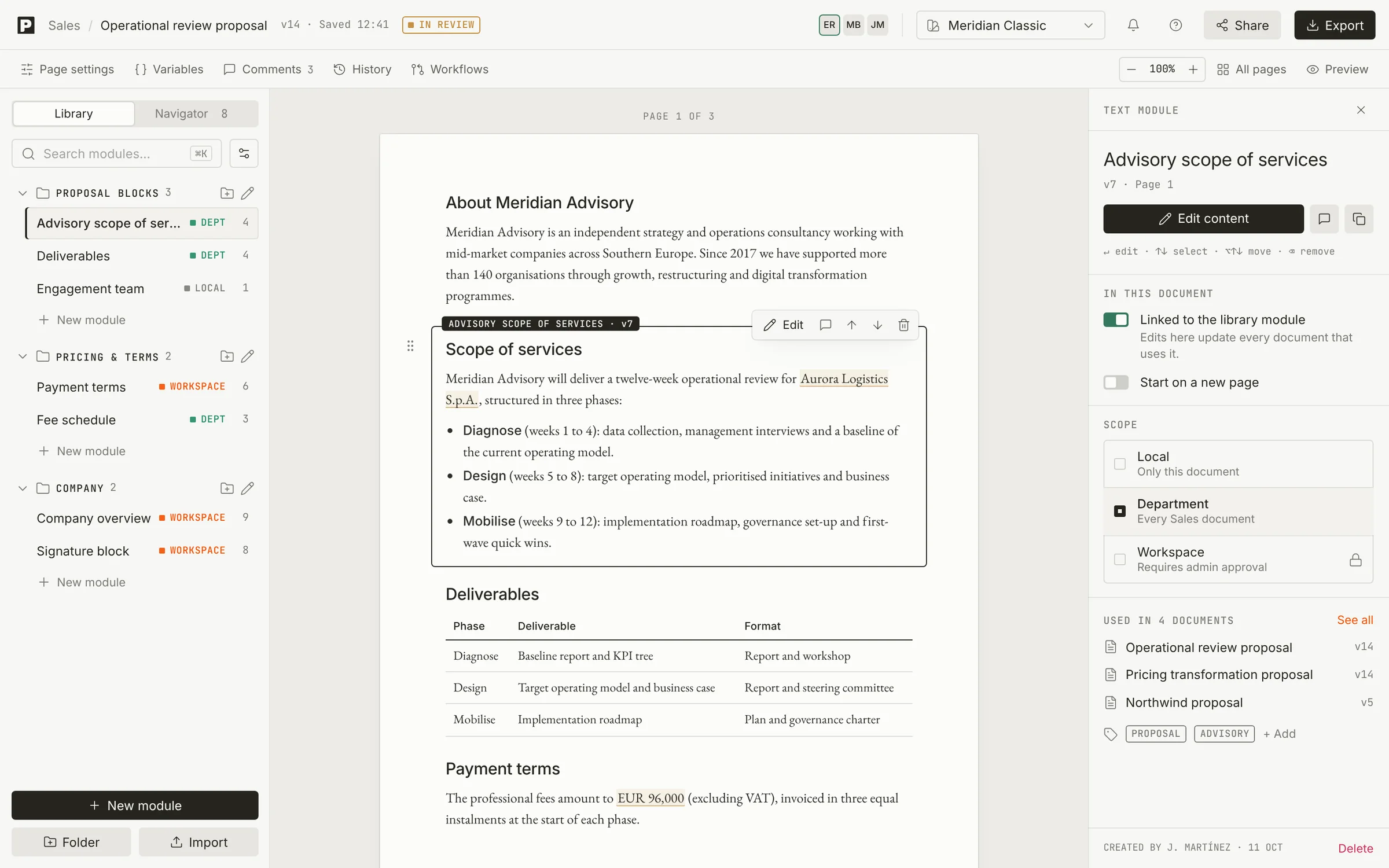
The editor shows the document as it will print: real sheets, real margins, and modules that split across pages at a line, list item or table row. The library sits on the left and the Inspector for the selected module on the right.
- Insert a module with a click, Enter or drag and drop, and reorder from the Navigator
- Headings, lists, tables with merged cells, images with crop and captions, links, highlight and text color
- 28 fonts, including metric-compatible versions of Arial, Times New Roman and Calibri
- Zoom from 50% to 200%, a grid of all pages and a read-only preview
- Keyboard first: Enter to edit, arrows to move between blocks, Alt and arrows to reorder
Linked modules
One module, many documents
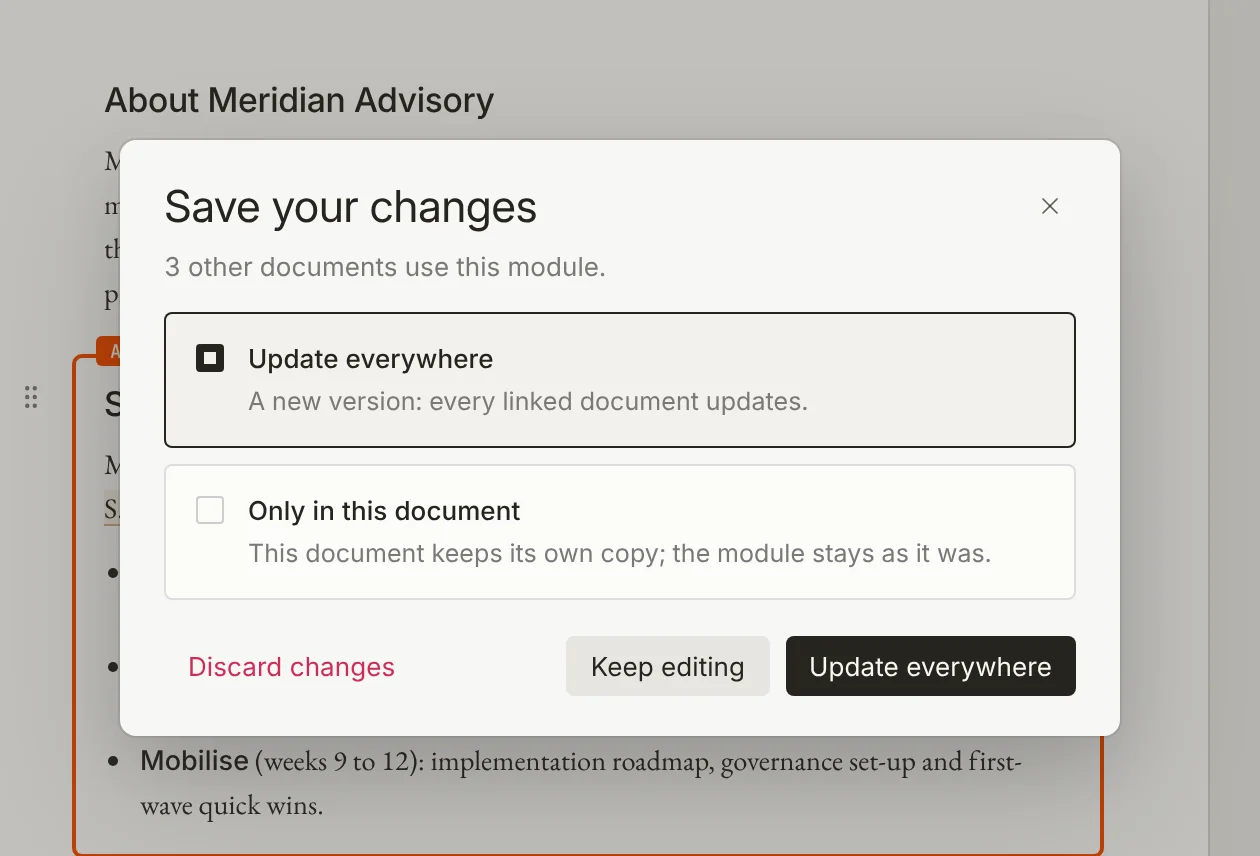
Every module you insert starts linked to the library. Edit it inside any document and ParaBlox tells you how many other documents use it before you save. Update all of them, or keep the change in this document as its own copy.
- The Inspector shows where a module is used, with the list of documents
- Own copies are marked in the page and in the Navigator
- When the library moves ahead, an own copy shows the update and lets you take it or link back
- Only one person edits a module at a time, and everyone else sees who is editing
Variables
Fill client details once per document
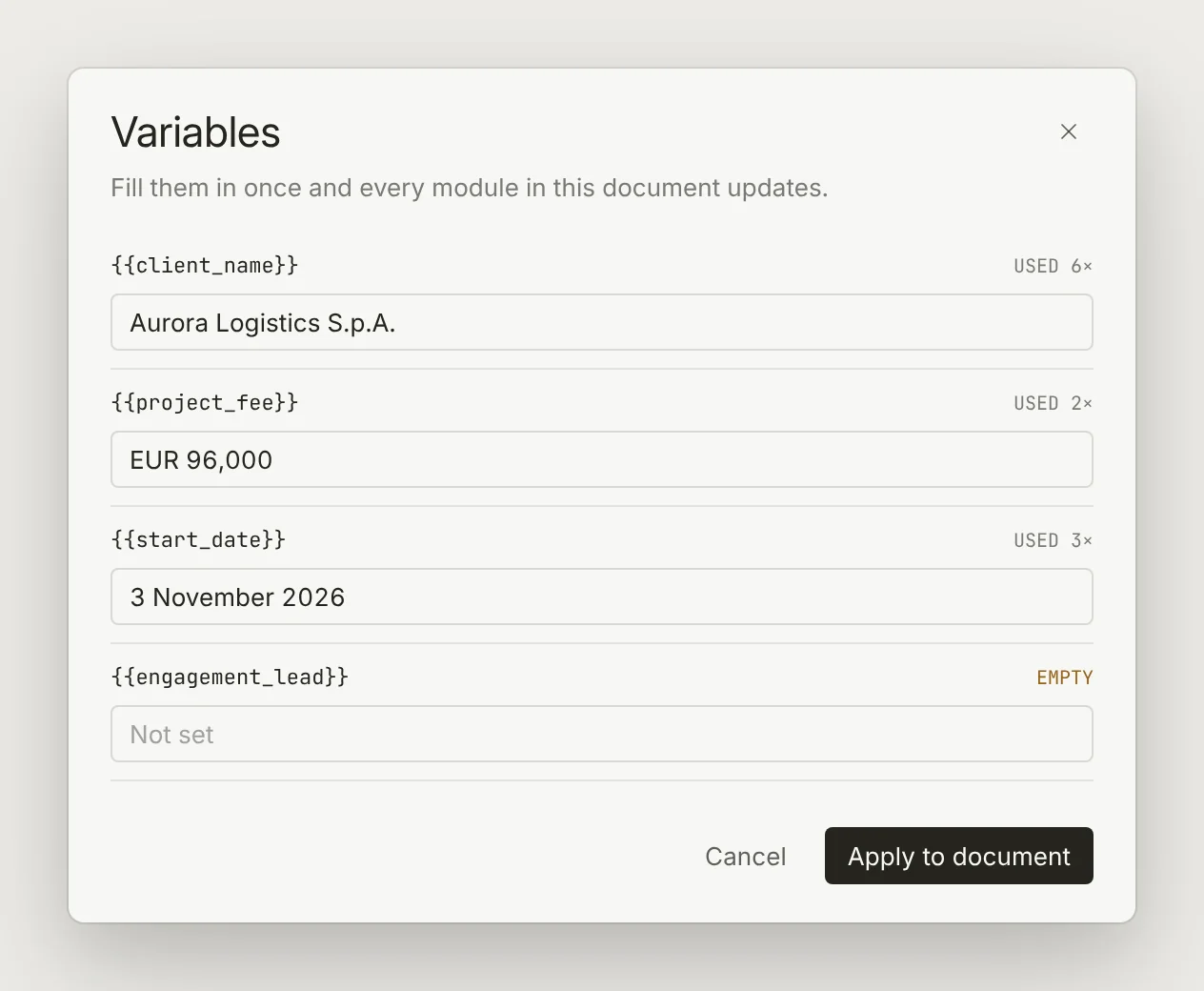
Variables such as {{client_name}} or {{start_date}} keep modules generic. Each document stores its own values, and the Variables dialog lists every variable the document's modules use.
- Insert a variable from the toolbar or type it between double braces
- Variables show as highlighted chips in the editor and as plain text in exports
- Preview and export warn you about variables without a value
Page layout
Headers, footers and letterhead as reusable modules
Headers and footers are modules too, so a company letterhead is defined once and reused. Set one as the department letterhead and every new document in that department starts with it.
- A4, Letter, Legal and Oficio, with margins in millimeters
- Different first page and different odd and even pages
- Page number and total pages fields, kept as real fields in Word
- Style presets per department set the document's base font and accent color
Import
Turn Word and PDF files into modules
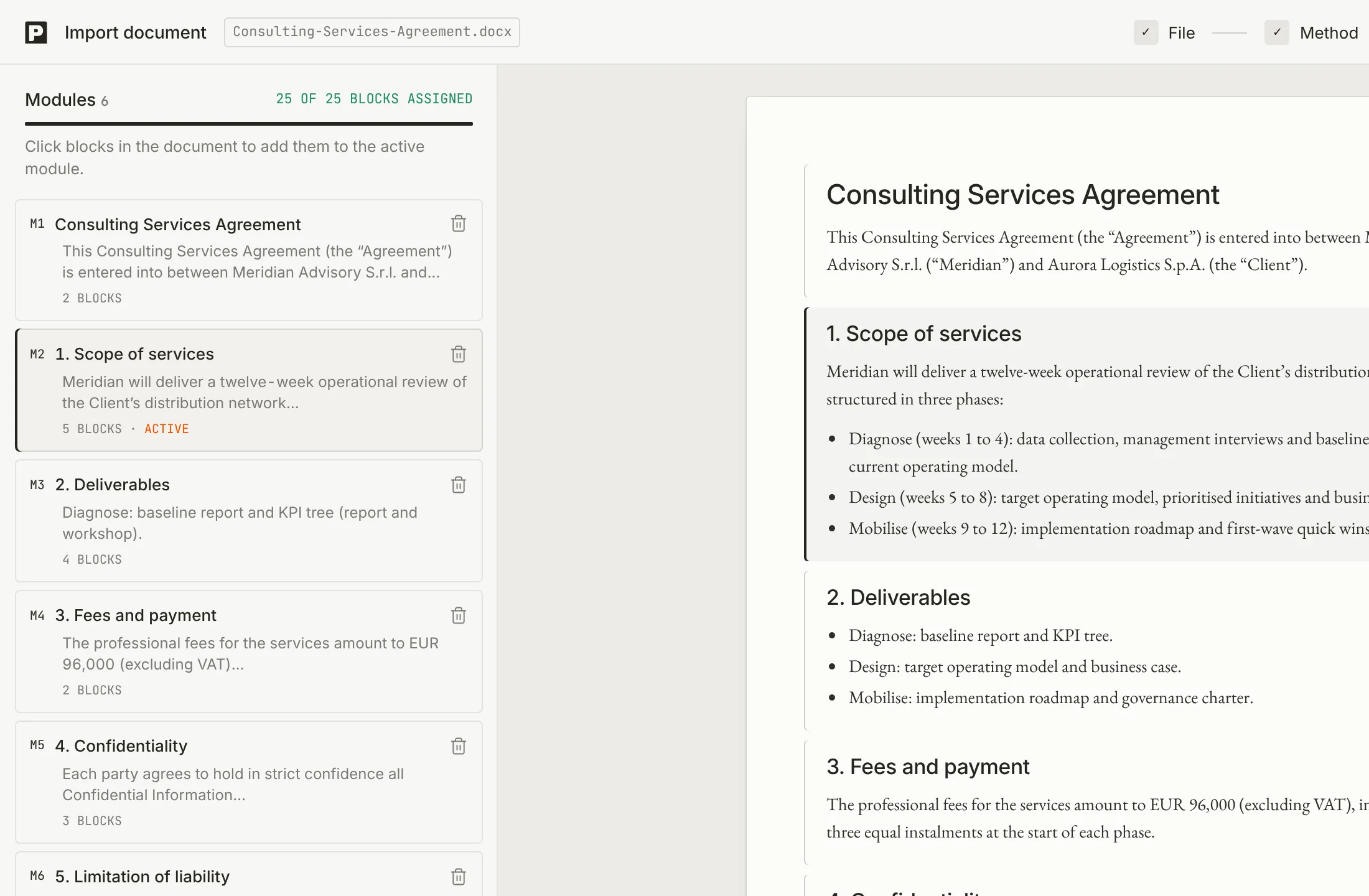
The import wizard reads a .docx or .pdf in your browser, proposes where to split it and lets you build each module by clicking the document. Nothing is uploaded until you confirm.
- Automatic split at titles and topic changes, or build modules by hand
- Tables and images can become modules of their own
- Page size, margins, fonts, headers, footers and page numbers carry over
- Files up to 40 MB and PDFs up to 300 pages
Export and print
PDF and Word from the Basic planPDF, Word or straight to the printer
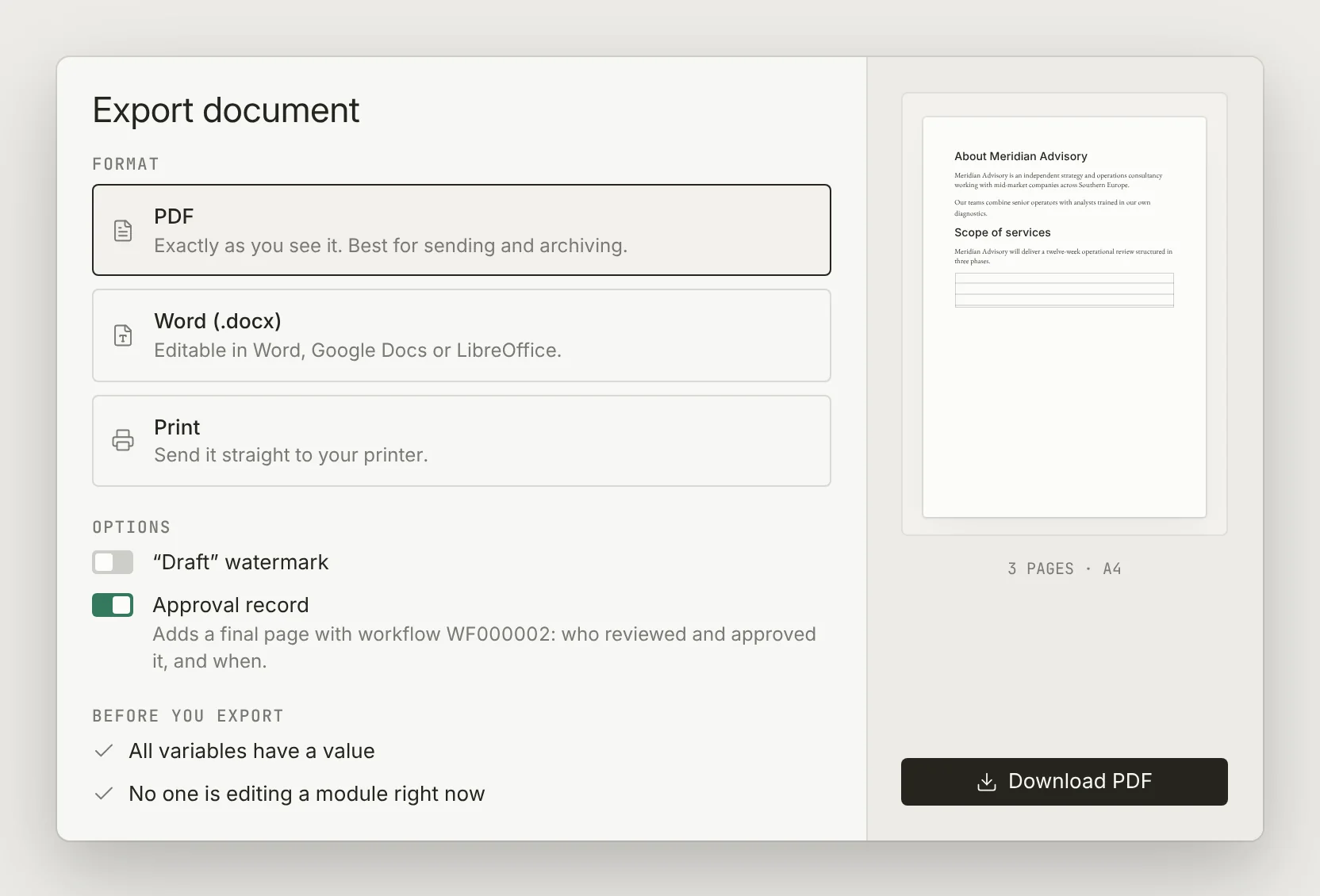
PDF export is rendered with the same layout engine as the editor. Word export builds a native .docx you can keep editing in Word, Google Docs or LibreOffice. Printing is available on every plan.
- Optional Draft watermark, added automatically while a workflow is in progress
- Approval record page with reviewers, approvers and dates
- Long exports continue in the background and download when ready
- Exported files are private and deleted after 24 hours
Sharing
Invite your team, share with anyone
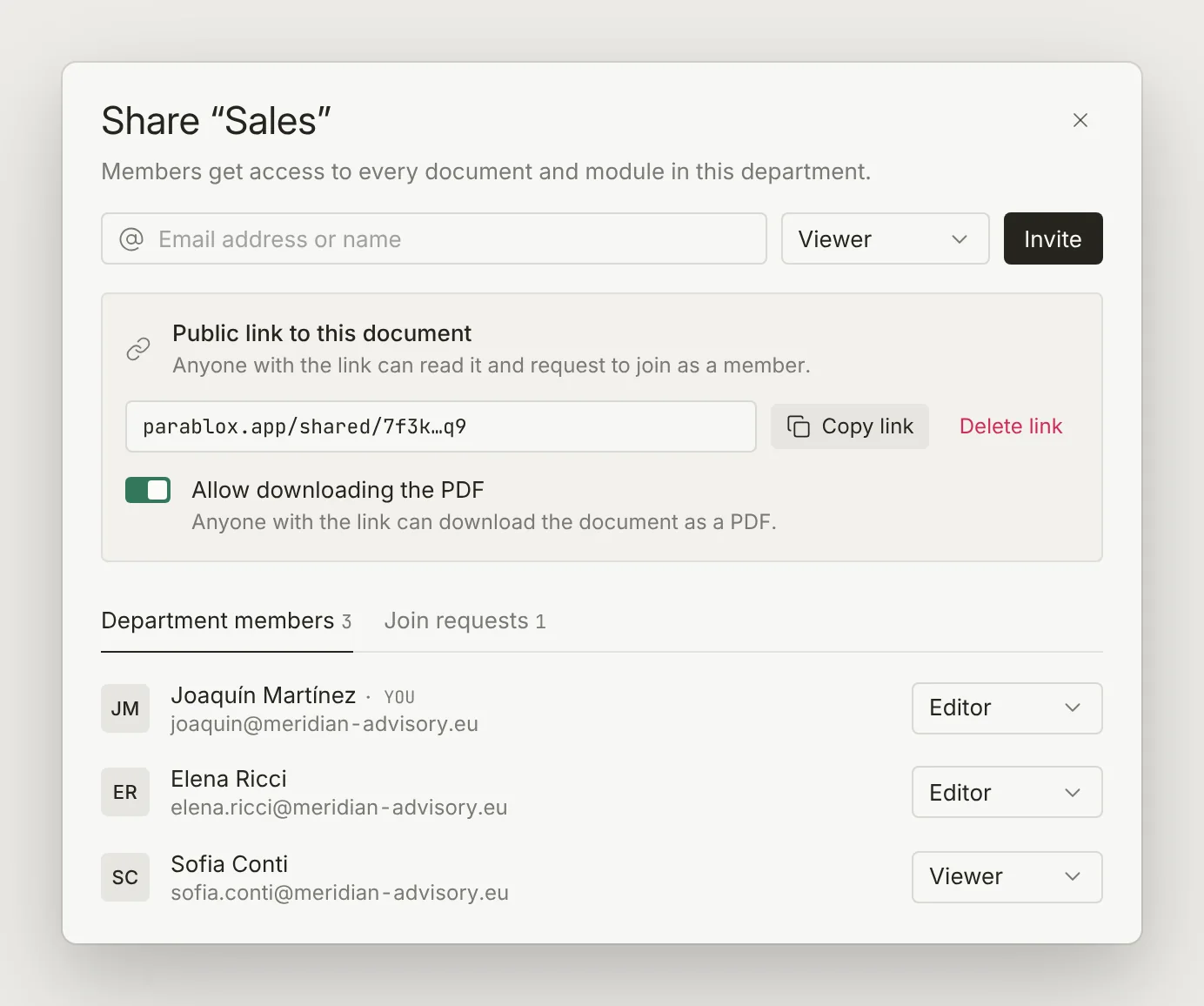
Invite people to a workspace or straight into a department as editor or viewer. To show a document to someone outside, create a link: they read a clean, paginated copy without signing in.
- Delete a link at any time and it stops working
- PDF download from a link is off until you turn it on
- Visitors can ask to join the department, and the department's editors or a workspace admin approve the request
Collaboration
Comments where the text is
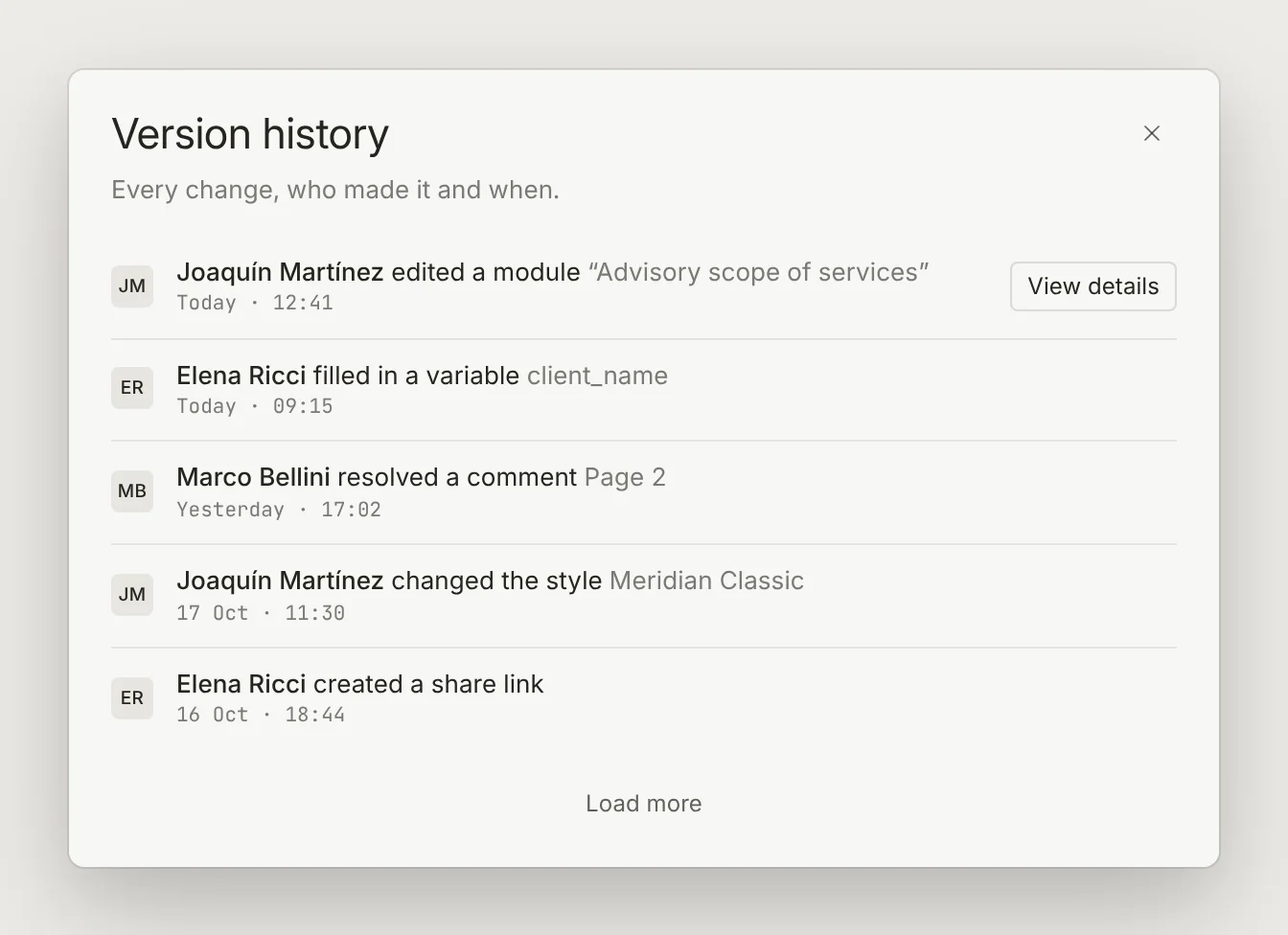
Comment on any block, mention a colleague and resolve the thread when it's done. The History dialog lists every change to the document, and edits to modules show a before and after view.
- A For you tab with the comments that mention you
- Comment counts on each block and in the Navigator
- Undo for removing, inserting and moving blocks, up to 30 steps
Review workflows
Enterprise planFrom draft to approved, with names and dates
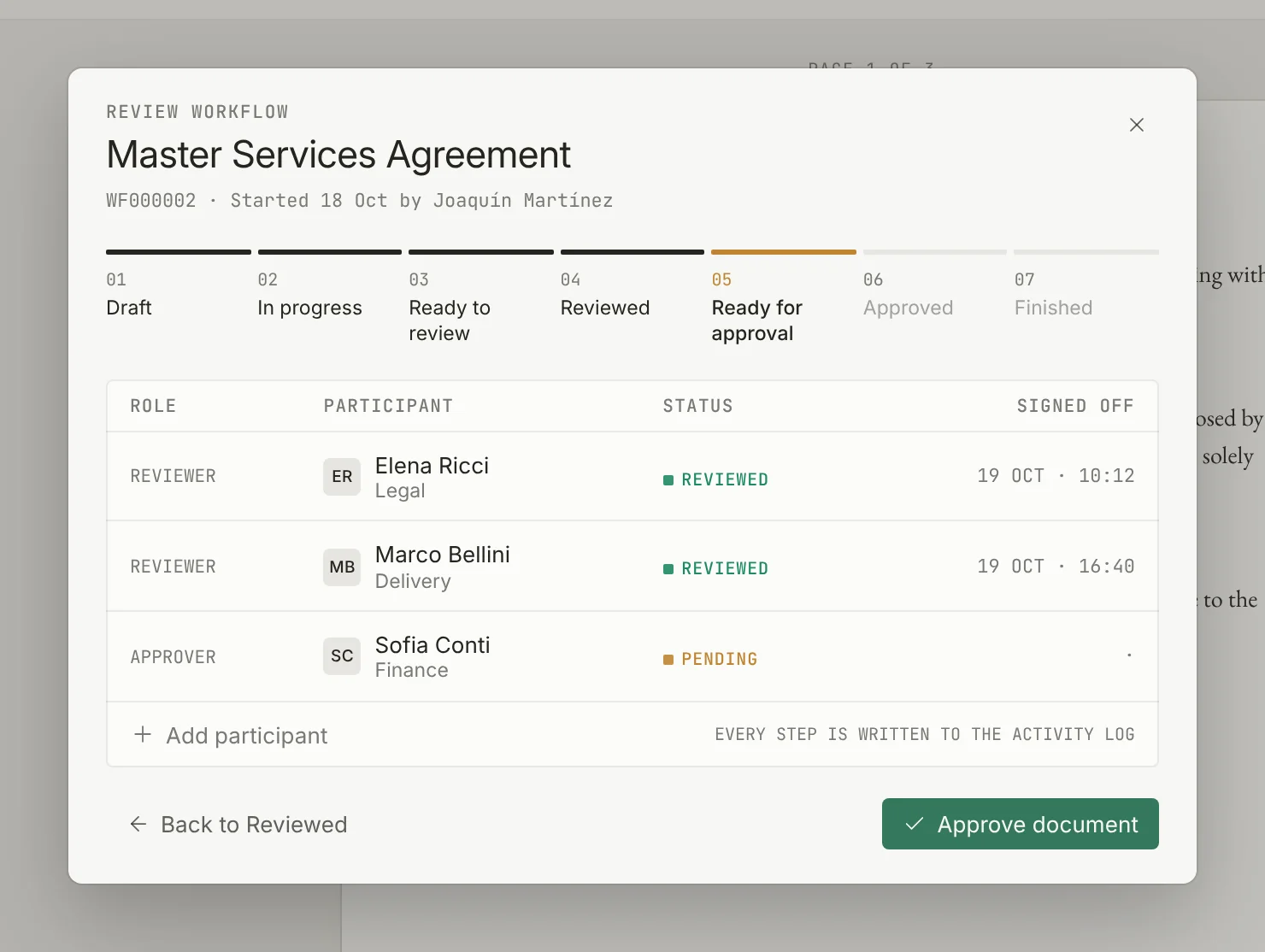
The document owner starts a workflow with reviewers and approvers grouped by area. The document moves through seven statuses, and each participant signs off from the Workflows panel or the Approvals page.
- Draft, In progress, Ready to review, Reviewed, Ready for approval, Approved, Finished
- The status moves on by itself when all reviewers are done or every area approved
- Pending reviews and approvals appear on each participant's Home and Approvals page
- Reusable participant lists saved as templates
Governance
Rules for content that many people reuse
Scopes decide which departments can insert a module. Workspace admins can require approval before a module is shared more widely, and every request and decision is recorded in the module's activity.
- Three scopes: Local, Department and Workspace
- Workspace roles Admin and Member, department roles Editor and Viewer
- An Activity page with the latest changes across documents and modules
- Name checks that stop two shared modules from having the same name
Languages
The interface in 12 languages
Each person picks their language in Settings. Invitation, password and workflow emails go out in the recipient's language.
- English (US)
- English (UK)
- Español (LATAM)
- Español (España)
- Nederlands
- Français
- Deutsch
- Italiano
- Polski
- Português (Brasil)
- Português (Portugal)
- Türkçe
Try it with your own documents.
Import a Word or PDF file you use often and see how it splits into modules.