
Variables
Use variables like {{client_name}} in modules and fill in their values once per document.
Variables let you keep modules generic and fill in the details per document. A clause can say {{client_name}} in the library, and each document that uses it shows its own client's name.
You write the variable once in a module. You set its value once in each document, and every module in that document that uses the variable shows the same value.
How variables are written#
A variable is a name between double curly braces, for example {{client_name}} or {{contract_date}}.
- Names can contain letters, numbers and underscores (
_). - Spaces aren't allowed. Use underscores instead:
{{start_date}}. pageandpagesare reserved for page numbers in headers and footers. See Headers, footers and page numbers.
Insert a variable in a module#
- Double-click the module to edit it.
- Place the cursor where the variable should go.
- Click Insert variable {{}} in the toolbar. A small field appears in the text.
- Type the variable's name.
- Press Enter to confirm, or Esc to cancel.
You can also type the variable directly in the text, braces included, for example {{client_name}}.
If the module is linked and used in other documents, those documents will show the variable too after you save with Update everywhere. Each of them fills in its own value.
Fill in the values#
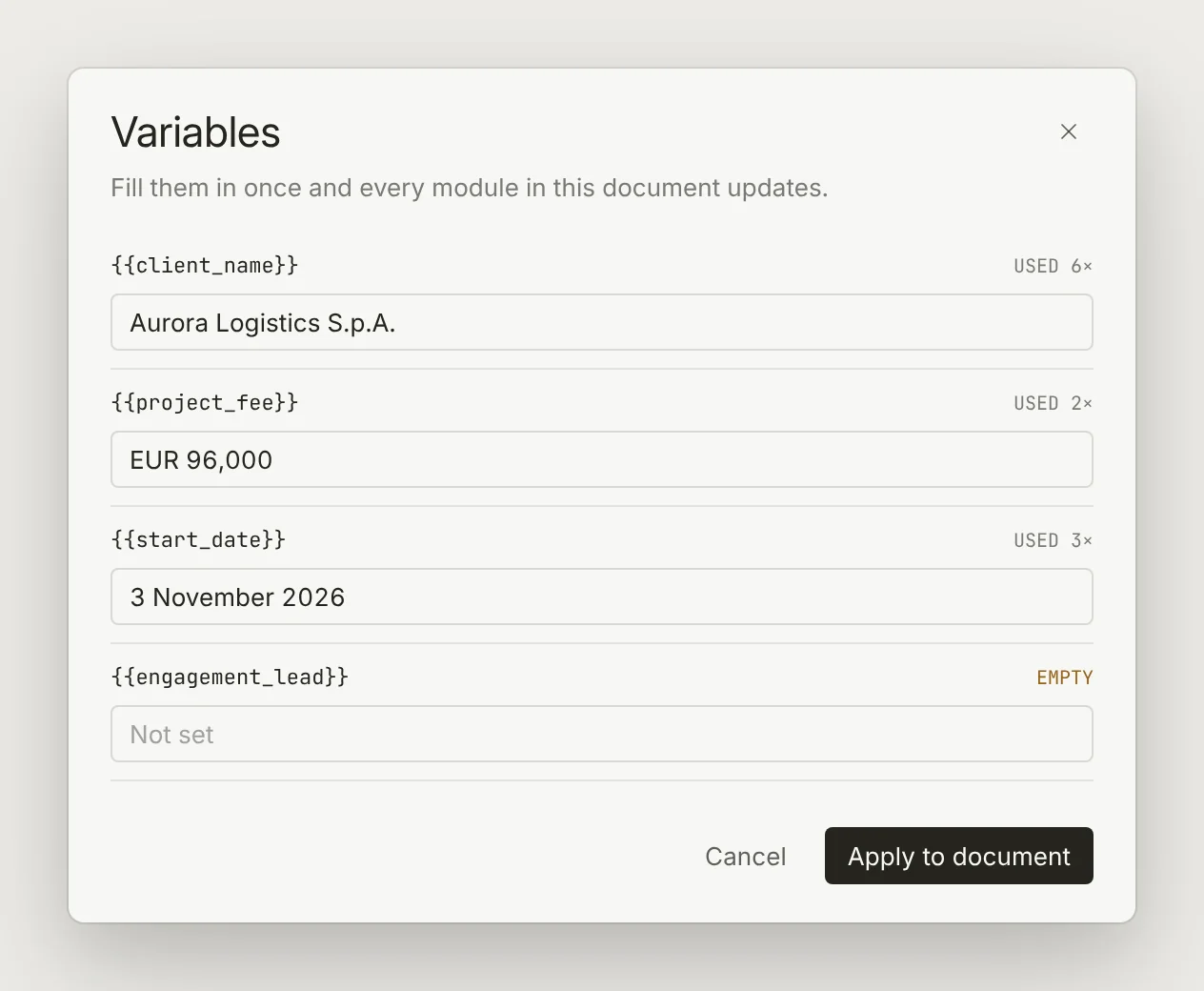
- Click Variables in the toolbar under the top bar.
- The dialog lists every variable used by the modules in this document. Each one shows Empty if it has no value yet, or how many times it's used, for example Used 3×.
- Type a value in each field. Empty fields read Not set.
- Click Apply to document.
The values appear in every module of the document straight away.
If the document doesn't use any variables yet, the dialog says Variables from the modules you add here will show up in this panel.
Values belong to the document#
Each document keeps its own values. The modules in the library stay generic, so the same module can say "Acme Inc." in one document and "Globex" in another.
There's one value per variable in a document. If {{client_name}} appears in five modules, all five show the same name.
How variables look#
- In the editor, variables appear as highlighted chips. A chip shows the value, or the variable's name when the value is empty.
- In the preview, in shared links, when printing and in exports, variables appear as plain text, with no highlight.
Empty variables#
A variable without a value shows as blank in the preview and in exports. ParaBlox warns you in two places:
- The preview shows This document still has variables that haven't been filled in.
- The export dialog lists the empty variables under Before you export, for example "2 variables without a value: client_name, start_date", and notes that they'll be exported blank. Click Fill in to open the Variables dialog and complete them. See Export to PDF and Word.