
Document history
See every recorded change to a document, compare a module's text before and after an edit, and restore an earlier version in the document.
The document history shows what changed in a document, who changed it and when. Use it to follow the work on a document, to check what someone edited, or to bring back earlier wording.
Everyone in the workspace can open a document's history.
Open the history#
- Open the document.
- Click History in the toolbar under the top bar.
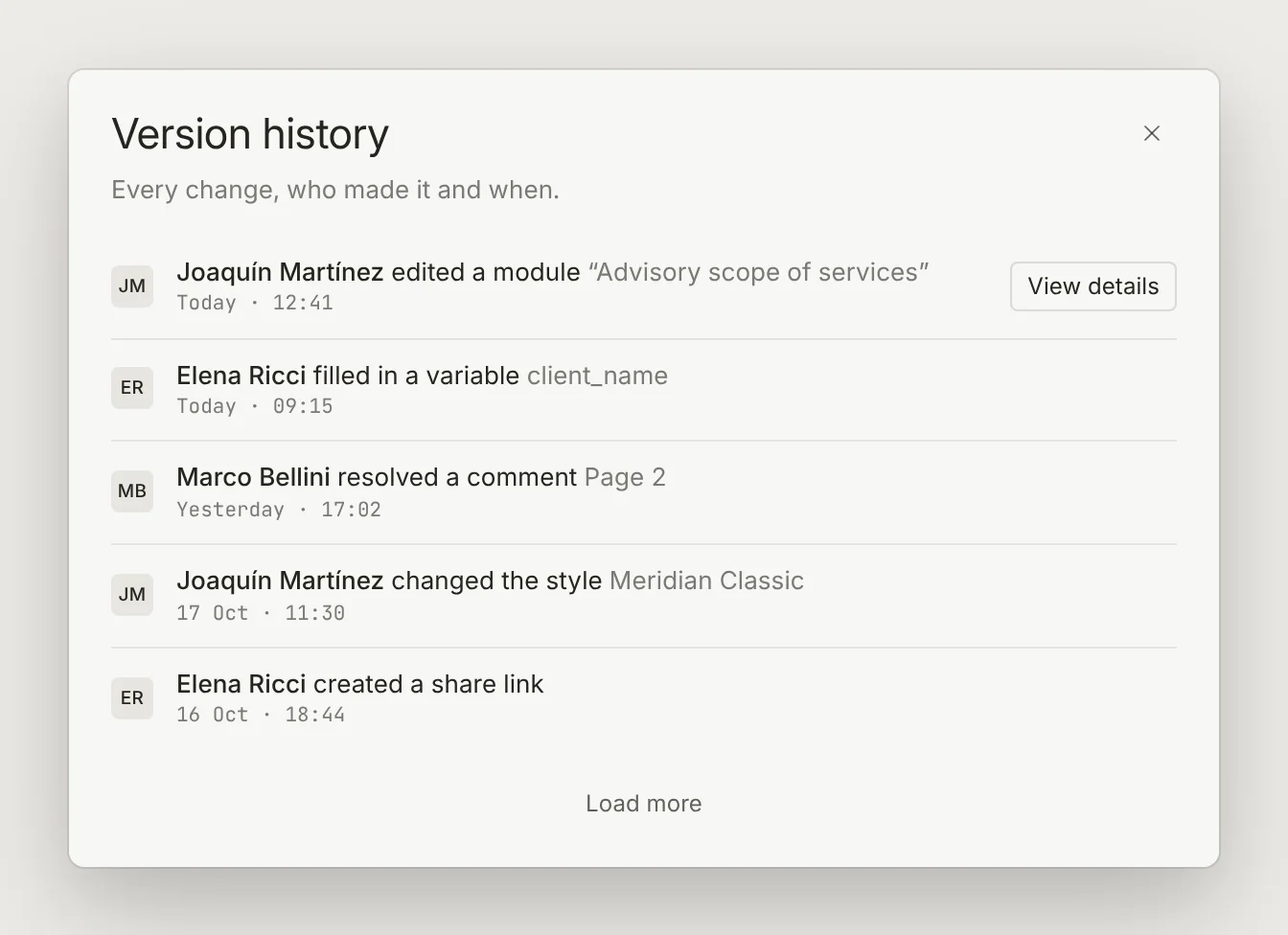
The Version history dialog opens with the most recent changes first. It loads ten entries at a time. Click Load more to see older ones.
What gets recorded#
| Entry | When it appears |
|---|---|
| created the document | The document was created. |
| changed the title | Someone renamed the document. |
| changed the style | A different style was applied. |
| changed the page size/margins | Page settings changed. |
| changed the header/footer | A header or footer was added, changed or replaced. |
| added a module | A module was inserted. |
| removed a module | A module was removed from the document. |
| edited a module | A module's content was saved from this document. |
| converted a module into a local copy | A linked module became an own copy. |
| reconnected a module as primary | An own copy was linked to the library again. |
| filled in a variable | A variable got a value. |
| created a share link, revoked a share link | Public links were created or removed. |
| Allowed downloads from the shared link, Turned off downloads from the shared link | PDF downloads on a share link changed. |
| Downloaded the PDF from the shared link | Someone downloaded the PDF from a share link. |
| Exported the document | Someone exported the document. |
| added a comment, resolved a comment, reopened a comment | Comment activity. |
Review workflow steps are recorded too: when a workflow is created, started, sent to review or approval, stepped back or finished, and when participants are added or removed.
Edits made to a module from somewhere else, such as from another document, don't appear in this document's history.
See what changed in an edit#
Entries for edited a module have a View details button.
- Click View details.
- The What changed dialog shows the module's text Before and After the edit.
- Turn on Highlight changes to mark the words that were added or removed.
Restore an earlier version#
From the details of an edit, you can bring the earlier text back into this document:
- Open View details on the edit you want to undo.
- Click Restore this version.
- Confirm.
The module in this document gets the Before text again, as an own copy. The module in the library doesn't change, and neither do other documents that use it.
To roll back the module in the library itself, open it from the Library page and load an older version from its version history. See Module versions.