
The editor at a glance
A tour of the document editor: the top bar, the toolbar, the Library and Navigator panel, the paginated canvas and the Inspector.
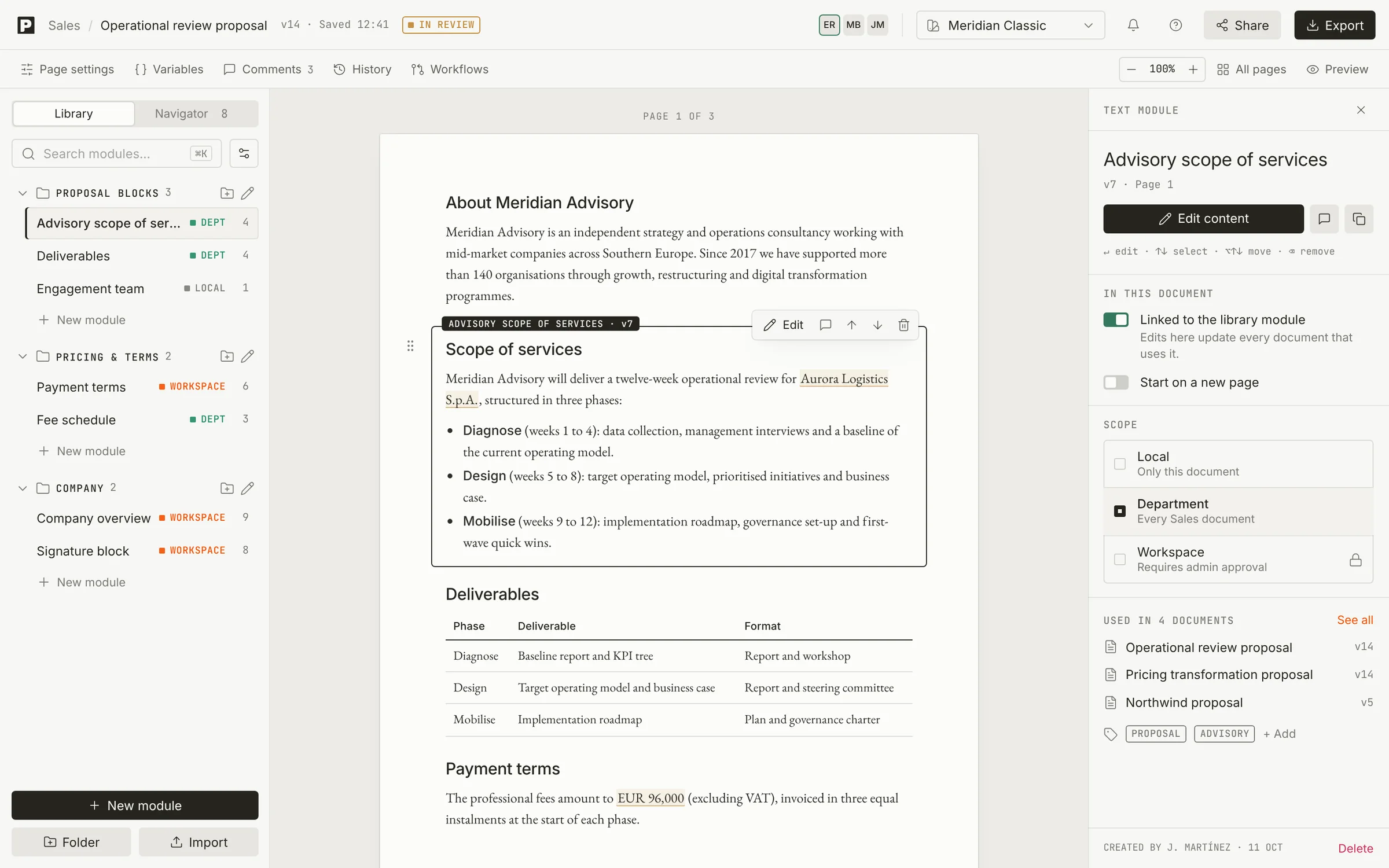
The editor is where you build a document. It shows your document as real pages, laid out the same way they'll look in the preview, when you print and when you export.
This article walks through each part of the screen so you know where to find things.
Top bar#
From left to right, the top bar has:
- The ParaBlox logo, which takes you back to Home.
- The department and the document title. Click the title to rename the document.
- The save indicator, for example
v12next toSaved 10:42. While a change is being stored it reads Saving document…. See Saving, undo and preview. - The workflow status, when the document has a review workflow.
- The avatars of the owner and any workflow participants.
- The style selector, which shows No style until you pick one. See Style presets.
- Notifications (the bell), which opens the Comments panel. A dot means there are open comments.
- Help, with Guided tour and Tool guide.
- Share and Export.
- More (⋯), with Settings, Delete and Log out.
Second toolbar#
Below the top bar is a row of document tools:
- Page settings: sheet size, margins and header and footer options. See Page size, margins and page breaks.
- Variables: fill in the values for the document's variables. See Variables.
- Comments: open the Comments panel. See Comments and mentions.
- History: see every recorded change. See Document history.
- Workflows: review and approval, shown on the Enterprise plan.
On the right side of the same row are the zoom controls, View all pages and Preview.
When you edit a module's text, the formatting toolbar appears pinned above the page. See Format text.
Left panel#
The left panel has two tabs.
- Library lists the folders and modules you can insert into this document. Search with the box at the top, filter by type, folder or tag, and click a module to insert it. See The module library.
- Navigator shows an outline of the document, page by page, including the header and footer. Click an item to jump to it, double-click to edit it, or drag it to reorder. Badges show linked modules (Primary), Own copy, modules with an update available, modules someone else is editing, and comment counts.
Drag the panel's edge to make it wider or narrower. ParaBlox remembers the width.
Canvas#
The canvas in the middle shows the document as separate sheets with real pagination. What you see here matches the preview, the printout and the exported PDF.
Long modules continue onto the next page by themselves. They split at a line, a list item or a table row.
Click a module to select it. Double-click it, or press Enter, to edit it.
Inspector#
When you select a module, the Module inspector opens on the right. It shows:
- The module's name, and buttons to Edit content, comment, move it up or down, or remove it from the document.
- In this document: whether the module is linked to the library or is an own copy. See Linked modules and own copies.
- Start on a new page, to force a page break before the module.
- Scope: Local, Department or Workspace. See Module scopes.
- The folder, the number of documents that use the module, tags and recent activity.
At the bottom, a hint reminds you of the keyboard shortcuts: ↵ edit, ↑↓ select, ⌥↑↓ move, ⌫ remove.
Mini bar#
A small floating bar follows the selected module, at its top right corner. It has Edit, a comment button, Move up, Move down and Remove from document. It's the quickest way to act on a module without going to the Inspector.
You can also right-click a module for Edit, Comments, Properties and Remove from document.
Zoom and page views#
- Use − and + to zoom from 50% to 200%. Click the percentage to reset the zoom.
- View all pages shows every page as a thumbnail grid. Click Back to editor to return.
- Preview shows the document read-only, exactly as it will be exported. Click Close preview to go back.