
Share a document with a link
Create a read-only public link to a document, allow PDF downloads, handle requests to join, and revoke the link when you no longer need it.
A share link lets anyone open a read-only copy of a document, without a ParaBlox account. Use it to send a proposal to a client or a policy to someone outside your workspace.
To create or delete a link you need write access to the document's department: you have to be a workspace Admin or an Editor of that department.
Create a link#
- Open the document.
- Click Share in the top bar.
- In the section that reads Anyone with the link can request to join as a member, click Create link.
- Click Copy link and paste it wherever you want to send it.
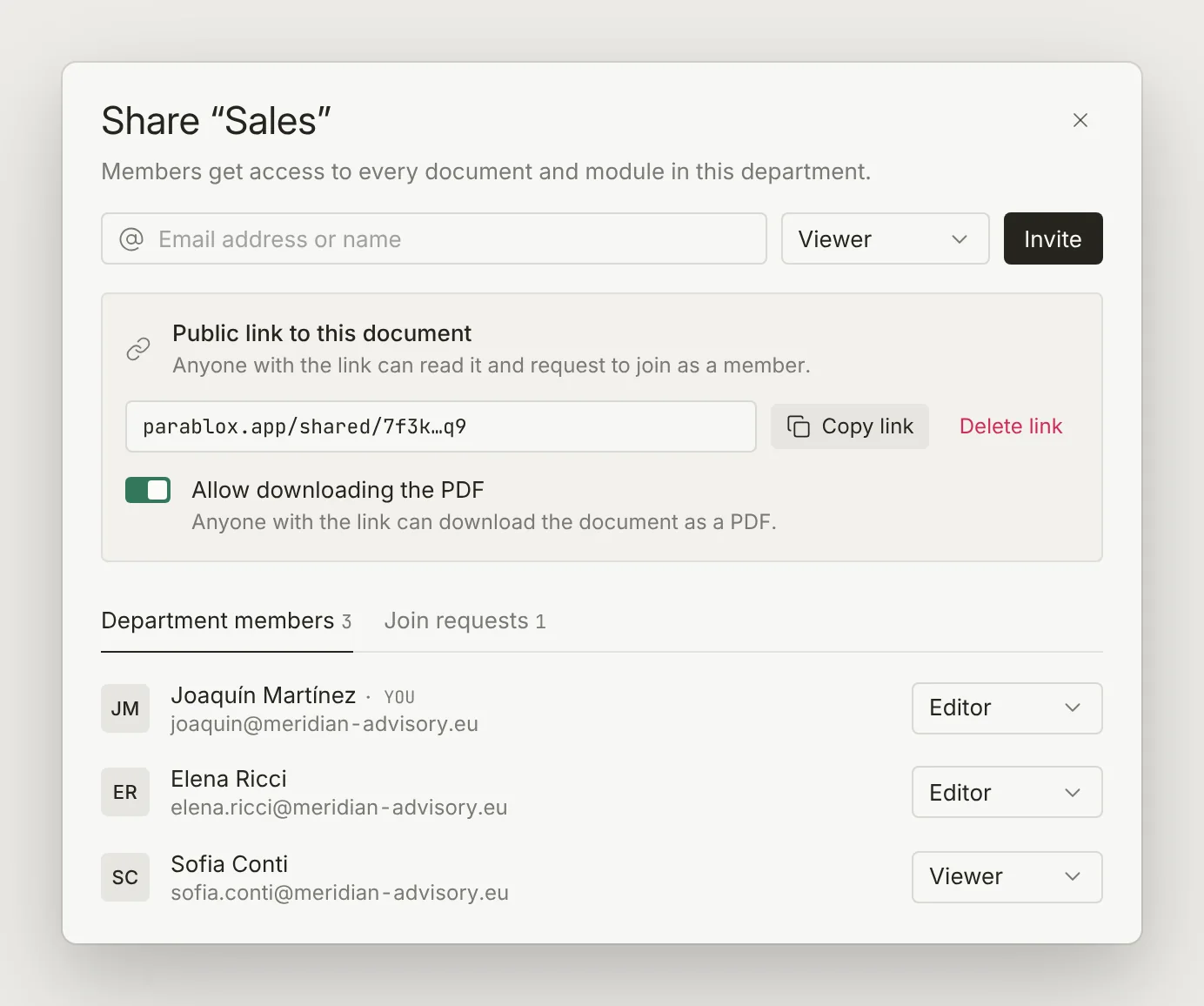
Each document has one active link at a time. To get the link again later, open Share and click Copy link.
The Share dialog also lists the department's members, invitations and join requests, because it's the same dialog you use to share the department.
What visitors see#
Visitors open the link in their browser. They don't need to log in.
- Your workspace logo, or the ParaBlox logo if your workspace has none.
- The document title.
- The document, read-only and laid out in pages, the same way it prints.
- Variables with their values. Variables without a value appear blank.
- A Download PDF button, if you allowed downloads.
- A Request to join as a member button.
Visitors don't see comments, history, module names, workflows or the editor. The page uses the language of the visitor's browser.
Allow downloading the PDF#
By default, visitors can only read the document online. To let them download it:
- Open Share.
- Turn on Allow downloading the PDF.
Anyone with the link can then download the document as a PDF. Turn the switch off to stop downloads. The link keeps working for reading.
PDF downloads need a plan with PDF export: Basic, Pro or Enterprise. On Free, the switch is unavailable and the dialog explains that downloads require Basic or higher. See Plans and features.
Each download is recorded in the document's History. Downloads are limited to 20 every 10 minutes.
Requests to join#
Someone who opens the link can ask to become a member of the workspace and the document's department.
- The visitor clicks Request to join as a member. If they aren't logged in, they're asked to sign in first.
- The request appears in the Share dialog, in the Join requests tab.
- A department Editor or a workspace Admin clicks Approve or Reject.
An approved person joins the department as a Viewer, which lets them read everything in the workspace. If the person isn't in the workspace yet, a workspace Admin has to approve the request. See Roles and permissions.
Revoke a link#
- Open Share.
- Click Delete link.
The link stops working right away and can't be restored. Anyone who opens it sees Link unavailable. If you need to share the document again, click Create link to get a new address and send it to the people who should have it.
What links don't do#
A share link has no expiry date, no password and no view count. If the link reaches someone it shouldn't, delete it and create a new one.
Creating and revoking links, and turning downloads on or off, are all recorded in the document's History. See Activity and audit trail.