
Find your way around
A tour of the ParaBlox interface: Home, the sidebar, the workspace switcher, search, notifications and breadcrumbs.
Every page in ParaBlox shares the same frame: a sidebar on the left and a top bar above the content. The document editor has its own layout, described in The editor.
Home#
Home is the first page you see after logging in. It opens with a greeting and a one-line summary of what's waiting for you.
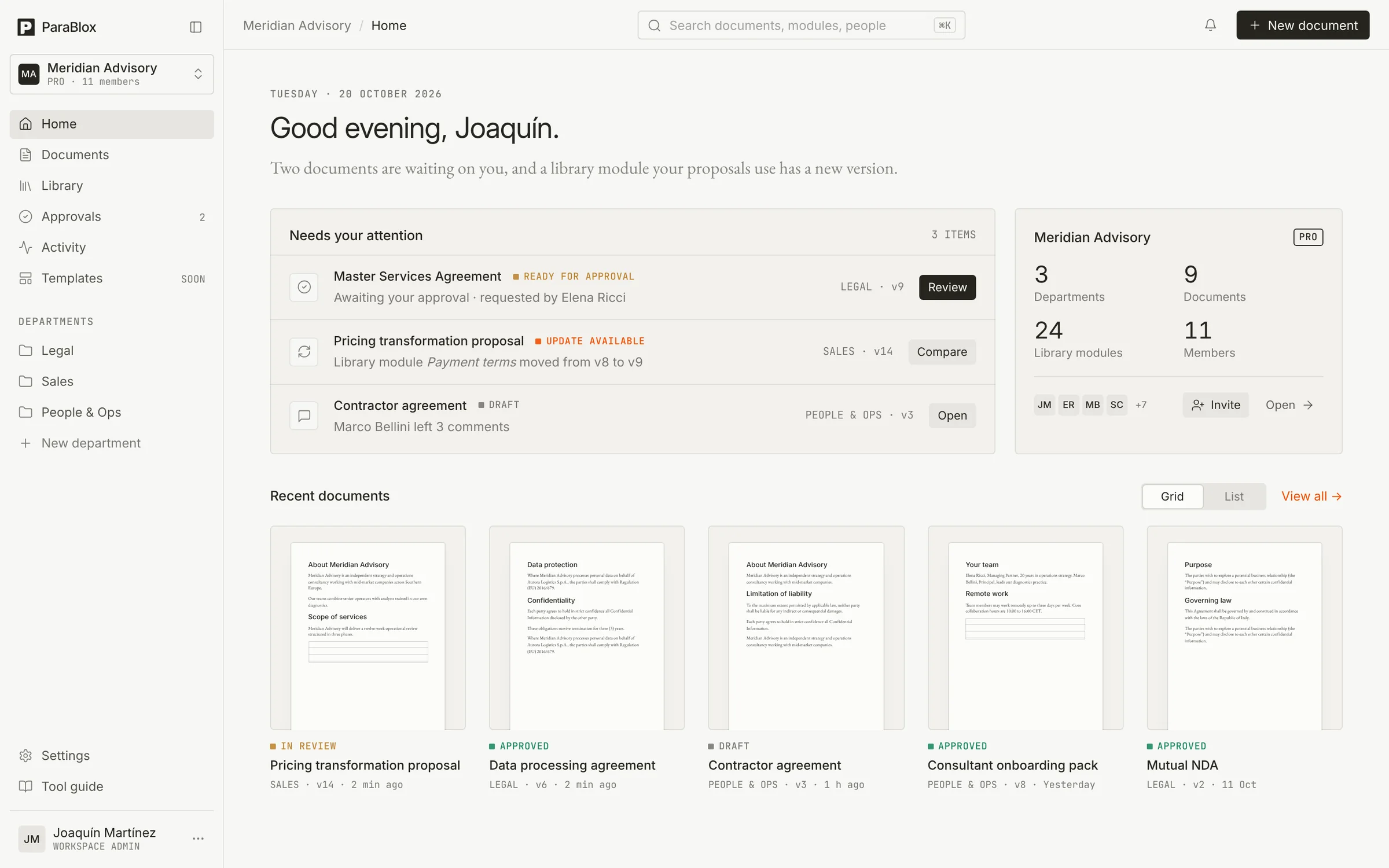
Needs your attention#
This list collects the things that need you, in this order:
- Documents waiting for your approval or review.
- Requests to widen a module's scope (workspace admins only).
- Library modules that changed since you made an own copy of them in one of your documents.
- New comments on documents you own.
Each item has a button to act on it: Review, Compare, Decide or Open. When the list is empty, Home tells you you're all caught up.
Counts and recent documents#
Below the list, Home shows how many departments, documents, library modules and members the workspace has. Workspace admins also see an Invite button here. Recent documents shows what you worked on lately. Switch between Grid and List, and click View all to open the full list.
The sidebar#
| Item | What it opens |
|---|---|
| Home | Your start page. |
| Documents | Every document in the workspace, across all departments, with a filter. |
| Library | Every reusable module in the workspace, with its scope, version and where it's used. |
| Approvals | Decisions waiting for you and every open review workflow. The number shows how many are waiting. |
| Activity | Recent changes across documents and modules, newest first. |
| Templates | Marked Soon. Not available yet. |
| Departments | The list of departments. Click one to open it. Workspace admins also see New department. |
| Settings | Your account settings. |
| Tool guide | Cards that explain each part of ParaBlox. |
At the bottom of the sidebar, your name and role appear (Workspace admin or Member). Click them to open a menu with Settings and Log out.
Switch workspaces#
The workspace switcher sits at the top of the sidebar. It shows the current workspace's name, its plan and how many members it has.
- Click the workspace name.
- Select another workspace from the list. The current one has a check mark.
The same menu has Workspace overview, which opens the current workspace's page, and New workspace. See Workspaces.
Search#
Press ⌘ K (Ctrl K on Windows), or click Search documents, modules, people in the top bar.
- Type part of a title or name.
- Use ↑ and ↓ to move through the results.
- Press ↵ to open the selected result, or Esc to close.
Results are grouped into Documents, Modules, Departments and People, and come from the current workspace only. Search matches titles and names. People results are there for reference and don't open a page.
The top bar#
- Breadcrumbs on the left show the path to the current page. Click a part of the path to go back to it.
- Search documents, modules, people opens the search palette.
- New document creates a document in any department where you can edit. See Creating documents.
- The bell, Notifications, opens a short list of the latest items from Needs your attention. A dot appears when approvals, reviews or scope requests are waiting. Click View approvals to open the Approvals page.
Inside the document editor, the bell opens the document's comments instead.
Collapse the sidebar#
Click the Collapse sidebar button at the top of the sidebar to shrink it to icons. Click Expand sidebar to bring the labels back. ParaBlox remembers your choice in this browser.