
Create and edit modules
Create modules from the library or the page, name them, and edit them from a document or from the module page.
A module is a reusable piece of content, such as a clause, a company overview or a pricing table. You write it once, keep it in the library and insert it into as many documents as you need.
This article covers creating modules, naming them, editing their content and keeping them organized. To create or edit modules you need to be a workspace admin or an editor of the department.
Create a module#
You can start a module from the library or directly on the page.
From the library#
- Open a document.
- In the left panel, open the Library tab.
- Click New module at the bottom of the panel. To create it inside a specific folder, hover the folder and click + new module instead.
- Write the content. The new module is already placed in your document and open for editing.
From the page#
- Open a document.
- Click + New module on an empty part of the page.
- Write the content.
A module created without a folder goes into the department's first folder. If the department has no folders yet, ParaBlox creates one called Modules.
The module's starting scope comes from the workspace setting Default lock mode for new modules. You can change it afterwards in the Inspector. See Module scopes.
Automatic naming#
A new module starts as Untitled module. The first time you save it, ParaBlox renames it after its first line of text, up to 60 characters. You can rename it at any time.
Unique names#
Module names must be unique, and capitalization doesn't count ("Payment terms" and "payment terms" are the same name). How far the rule reaches depends on the module's scope:
| Scope | Name must be unique |
|---|---|
| Local | Within its folder |
| Department | Across the whole workspace |
| Workspace | Across the whole workspace |
If the name is taken you'll see "A module with that name already exists in the workspace." Pick another name and try again.
Edit a module from a document#
Select the block on the page, then do one of the following:
- Double-click it.
- Press Enter.
- Click Edit content in the Inspector on the right, or the edit button in the small toolbar above the block.
What happens when you finish depends on whether the block is linked to the library module and how many documents use it:
- Used only in this document: click Save, or click outside the block. The library module gets a new version.
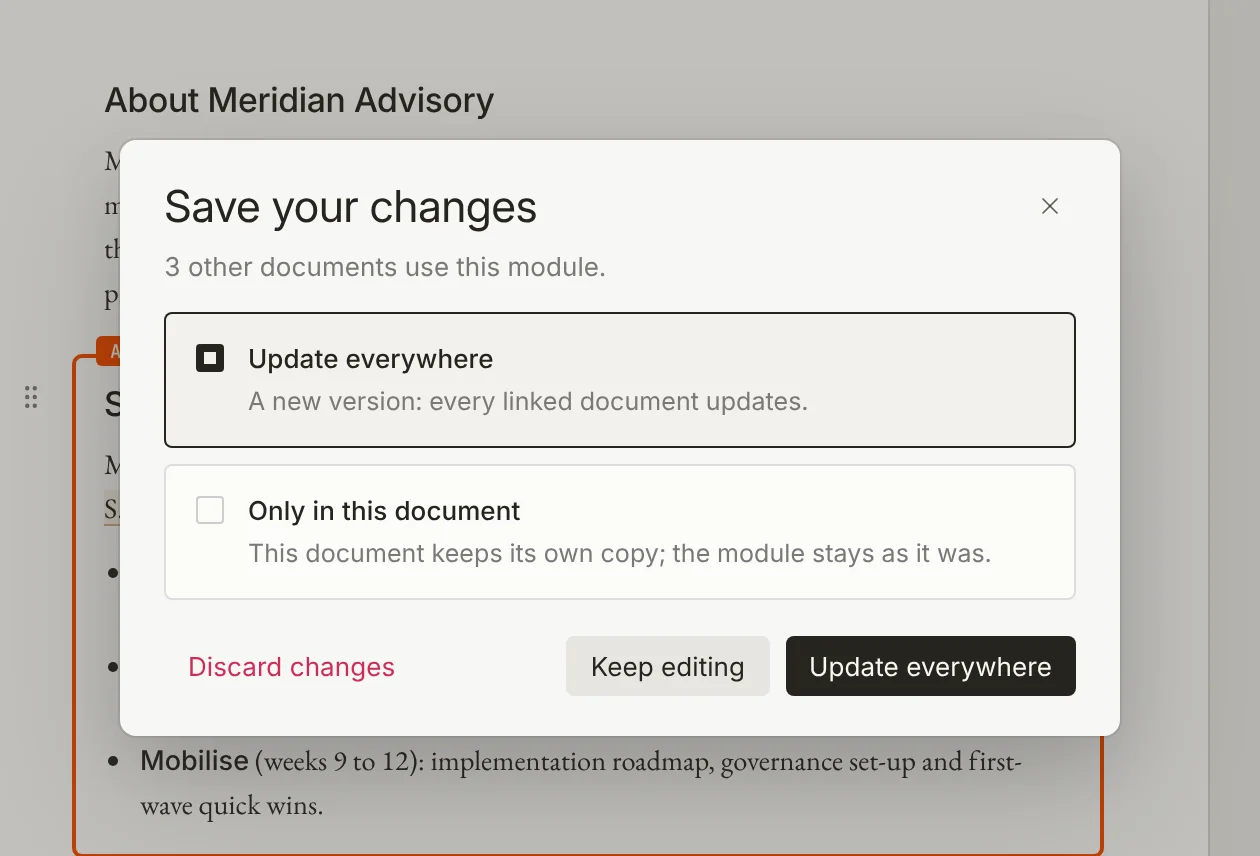
- Linked and used in other documents: you choose Update everywhere (every linked document shows the new version) or Only in this document (this document keeps its own copy and the library module stays as it was).
- Own copy: clicking outside saves the change in this document only. If you press Esc with unsaved changes, you get Save here, Discard changes and Keep editing.
For the difference between linked blocks and own copies, see Linked modules and own copies. Only one person can edit a module at a time. See Editing at the same time.
Edit a module from its module page#
The module page lets you edit a module without opening a document.
- Click Library in the sidebar.
- Click the module in the table.
- Edit the content.
- Click Save as new version.
The new version becomes the module's current version, and documents that use the module linked show it. Documents holding an own copy see that an update is available. The module page also lists the documents that use the module and its full version history. See Module versions and history.
Rename a module#
- In the Inspector: select the module on the page, click its name at the top of the Inspector, type the new name and press Enter.
- In the library: double-click a Local module's name, or right-click it and choose Rename.
Renames are recorded in the module's Recent activity.
Duplicate a module#
- In the Library tab, right-click the module.
- Choose Duplicate.
The copy appears in the same folder with a number added to the name (for example "Payment terms 1"). It's an independent module with its own history, so editing it doesn't affect the original.
Move a module to another folder#
- Drag it onto another folder in the Library tab.
- Or use the Inspector: next to Section, click the folder name, pick the destination and click Move here.
Modules can move between folders of the same department. If the destination already has a module with that name, ParaBlox asks you to give it a new name and offers Rename and move.