
Departments
Create departments, read the department page and its tabs, and rename, move or delete a department.
Departments split a workspace into team areas such as Legal, Sales or People. Each department has its own documents, module library, styles and members, and every document belongs to exactly one department.
Everyone in the workspace can open any department's documents and modules. A person's department role (Editor or Viewer) decides whether they can change things there. See Roles and permissions.
Create a department#
Only workspace admins can create departments.
- In the sidebar, under Departments, click New department. You can also use the New department card on the workspace overview page.
- Type a Name.
- Click New department.
The department page opens, and you're an editor of the new department. Next, invite the people who will work in it. See Invite people.
The department page#
Open a department by clicking its name in the sidebar.
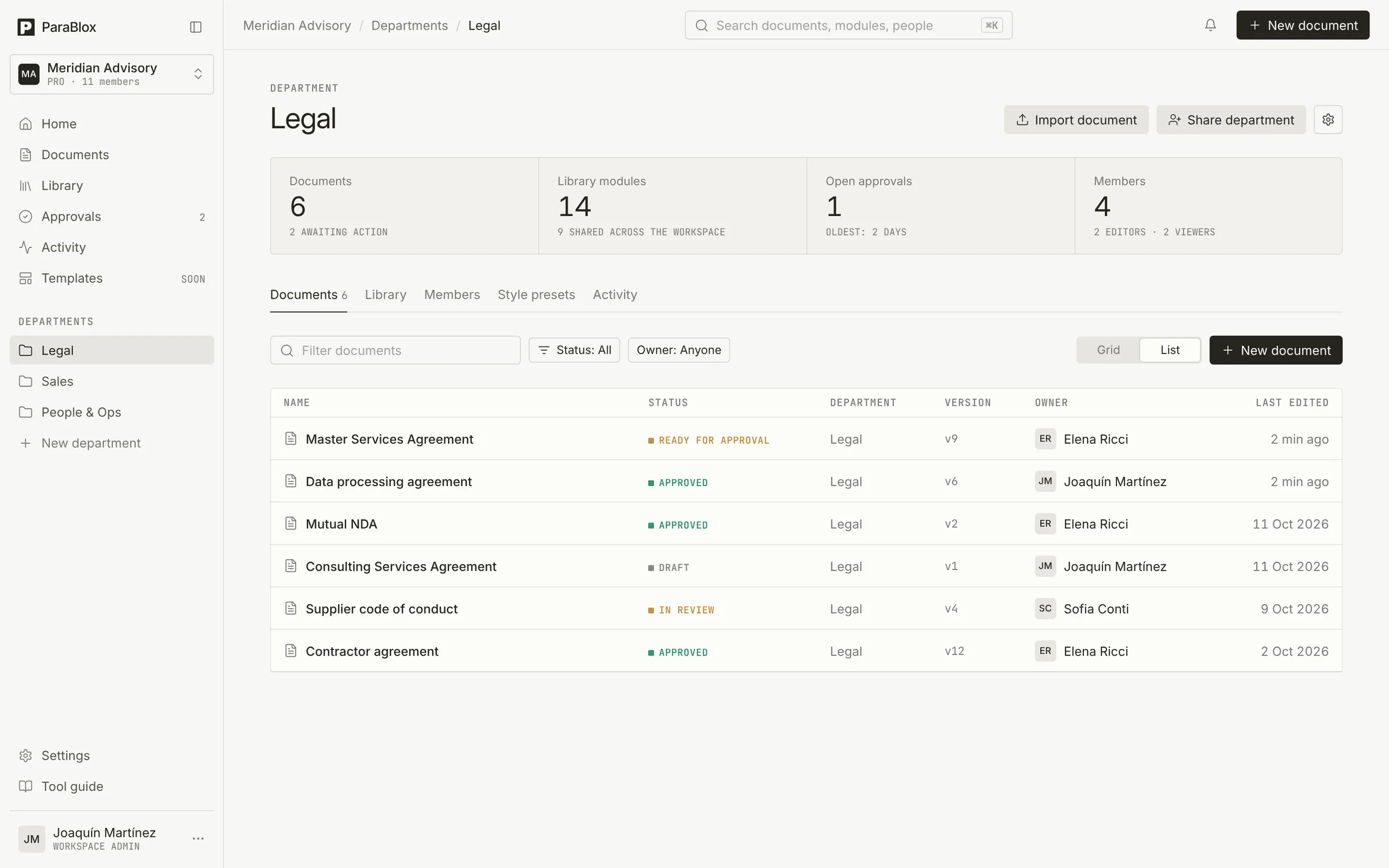
Header buttons#
- Import document turns a Word or PDF file into modules and, if you want, a new document. See Import documents.
- Share department opens the dialog where you invite people and set their roles.
- The gear icon, Department settings, opens the option to move the department to another workspace.
KPI strip#
| Figure | What it counts |
|---|---|
| Documents | The department's documents, and how many are awaiting action. |
| Library modules | The department's modules, and how many are shared across the workspace. |
| Open approvals | Open review workflows, and how long the oldest one has been waiting. |
| Members | People in the department, split into editors and viewers. |
Tabs#
- Documents: the department's documents. Filter by text, use the Status and Owner menus, switch between grid and list, and click New document to create one.
- Library: a read-only list of the department's modules. You create and edit modules from the Library tab inside the editor. See Modules.
- Members: who is in the department and their role. To change roles, use Share department.
- Style presets: the department's styles. See Styles.
- Activity: recent changes to the department's documents and modules.
Rename a department#
Workspace admins and editors of the department can rename it.
- Open the workspace overview page (click the workspace name in the sidebar, then Workspace overview).
- On the department's card, click the pencil icon, Rename department.
- Type the new name and press ↵.
Move a department to another workspace#
You need to be an admin of both workspaces.
- On the department page, click the gear icon, Department settings. You can also use the gear icon on the department's card on the workspace overview page.
- Under Move to another workspace, select the destination workspace.
- Click Move and confirm.
The department moves with all its folders, modules and documents. To move every department at once, use Migrate departments in workspace settings.
Delete a department#
Only workspace admins can delete departments.
- Open the workspace overview page.
- On the department's card, click the trash icon, Delete department.
- If the department has documents, the dialog asks whether to move them first. To keep them, select another department in the menu. If you leave the default option, they're deleted with the department.
- Type delete department to confirm.
- Click Delete.